
SSH Permission Denied (publickey): How to Fix It
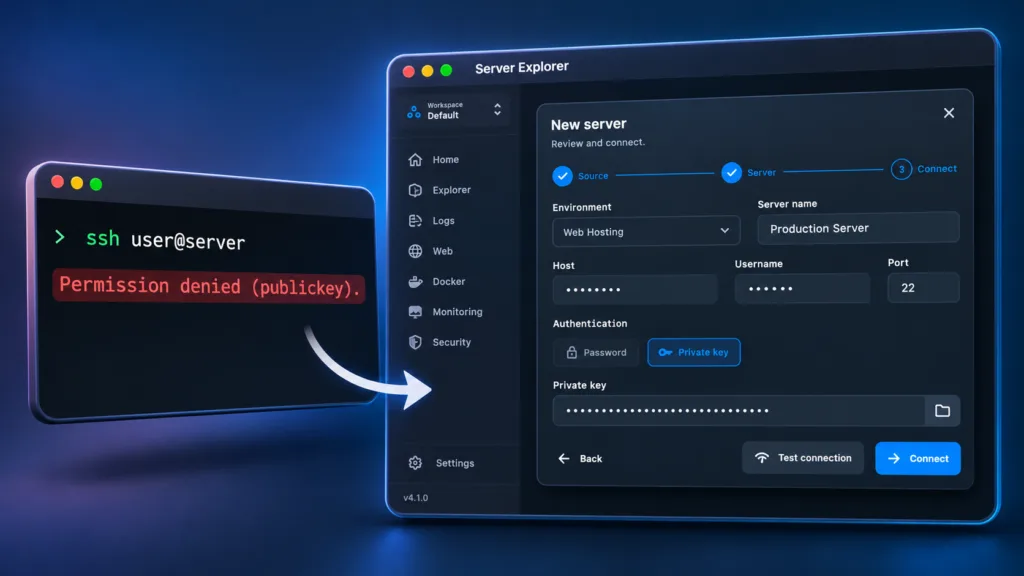
You try to connect to your Linux VPS, but SSH refuses the connection:
user@server: Permission denied (publickey).If you see SSH permission denied publickey, the server did not accept any of the SSH authentication methods your client offered. Most often, the username is wrong, the private key doesn’t match, or the server cannot read the authorized public key.
Here are five checks to get you connected without weakening SSH security.
1. Check Your SSH Username
The correct username depends on how your VPS was configured. For example, Ubuntu cloud images often use ubuntu, while other servers may use debian, root, or a custom user.
Try the account your hosting provider actually provisioned:
ssh ubuntu@YOUR_SERVER_IPA valid key for one account won’t automatically work for another. Avoid guessing repeatedly; check your VPS provider’s connection instructions.
2. Make Sure You’re Using the Right Private Key
If you have multiple SSH keys, your client might offer the wrong one. Explicitly select the private key that matches the public key installed for your server account:
ssh -i ~/.ssh/id_ed25519 -o IdentitiesOnly=yes ubuntu@YOUR_SERVER_IPIdentitiesOnly=yes tells SSH to use the specified identity rather than trying unrelated keys from your agent.
You can display the corresponding public key locally with:
ssh-keygen -y -f ~/.ssh/id_ed25519Compare it with the public key authorized for your account on the server. Never upload or share your private key as part of troubleshooting.
3. Fix SSH File Permissions
On Linux and macOS, overly permissive private-key files may be rejected by the SSH client.
chmod 700 ~/.ssh
chmod 600 ~/.ssh/id_ed25519
On the server, the target user’s SSH directory and authorized-keys file also need suitable permissions and ownership:
chmod 700 ~/.ssh
chmod 600 ~/.ssh/authorized_keys
Run the server-side commands as the affected user, using an existing console or other authorized access. Ensure the files belong to that user. Don’t run them blindly on another account or assume the same commands apply to Windows ACLs.
Bring your servers into focus.
A desktop app for macOS and Windows. Connect over SSH.
4. Verify authorized_keys on the Server
The server must have the public key in the target user’s ~/.ssh/authorized_keys file, normally one key per line.
If you cannot log in over SSH, use your VPS provider’s web console or another authorized administrator account to inspect it.
Check that:
- The public key matches the private key you’re using.
- It is in the home directory of the username you’re connecting as.
- The
.sshdirectory,authorized_keys, and relevant parent directories have safe permissions and ownership. - The SSH server configuration allows public-key authentication for that account.
Do not disable public-key authentication or enable password login just to bypass this error.
5. Use Verbose SSH Output to Find the Cause
If the connection still fails, ask SSH to explain what it’s doing:
ssh -vvv -i ~/.ssh/id_ed25519 -o IdentitiesOnly=yes ubuntu@YOUR_SERVER_IPLook for lines indicating which key was offered and whether the server accepted it. If the client offers the expected key but the server rejects it, inspect server-side SSH logs using your provider’s console or another working admin session.
For example, on many systemd-based distributions:
sudo journalctl -u ssh -u sshd --since '15 minutes ago'The service name and log location vary by distribution. Remove or redact sensitive details before sharing debug output.
Connect with Server Explorer After Fixing the Key
Once the username and key are correct, you can save the SSH connection in Server Explorer, a desktop app for managing Linux servers from Windows or macOS.
Enter your host, SSH port, username, and private-key details in the connection settings. After connecting, you can use the integrated terminal, browse server files, inspect processes and services, and manage Docker from one interface.
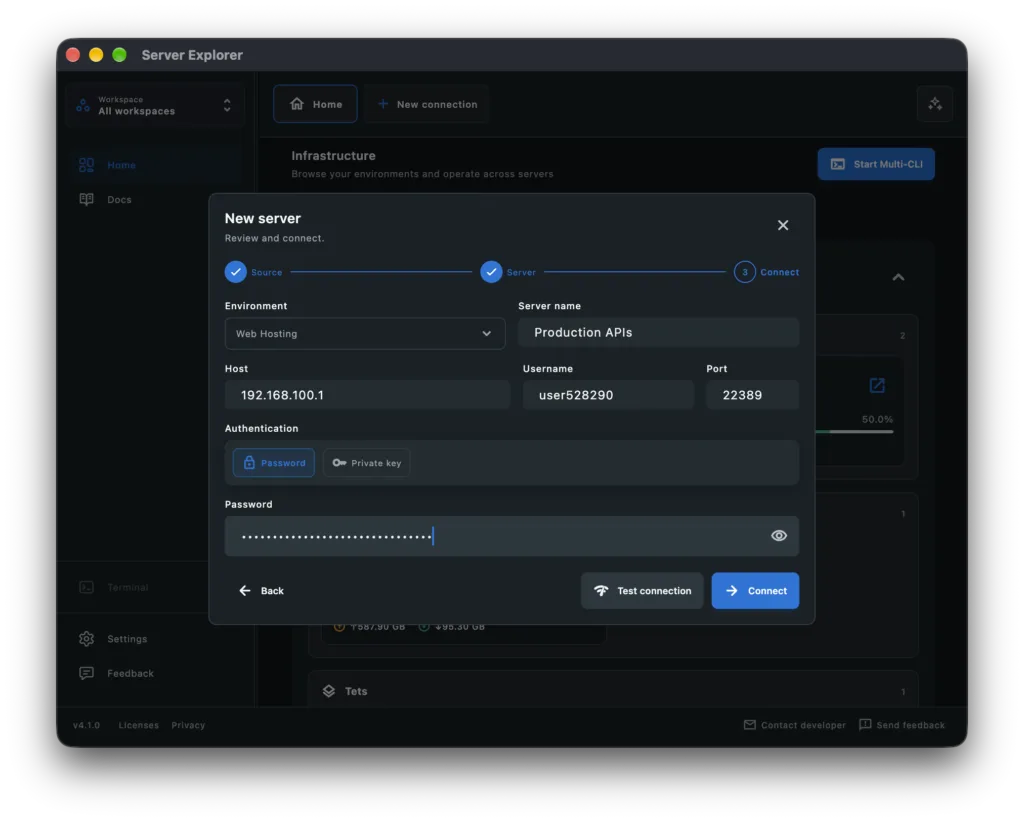
Server Explorer does not automatically repair a server’s authorized_keys file or override SSH authentication rules. It gives you a visual way to manage the server once authentication works.
Final Thoughts
When you encounter SSH permission denied publickey, start with the simplest causes: the username and private key. Then check permissions, authorized_keys, and verbose SSH output.
Fix the authentication issue rather than weakening your SSH configuration. Once connected, a visual SSH client can make everyday VPS management easier.
Bring your servers into focus.
A desktop app for macOS and Windows. Connect over SSH.