
SFTP Permission Denied? How to Fix File Upload Errors on Linux
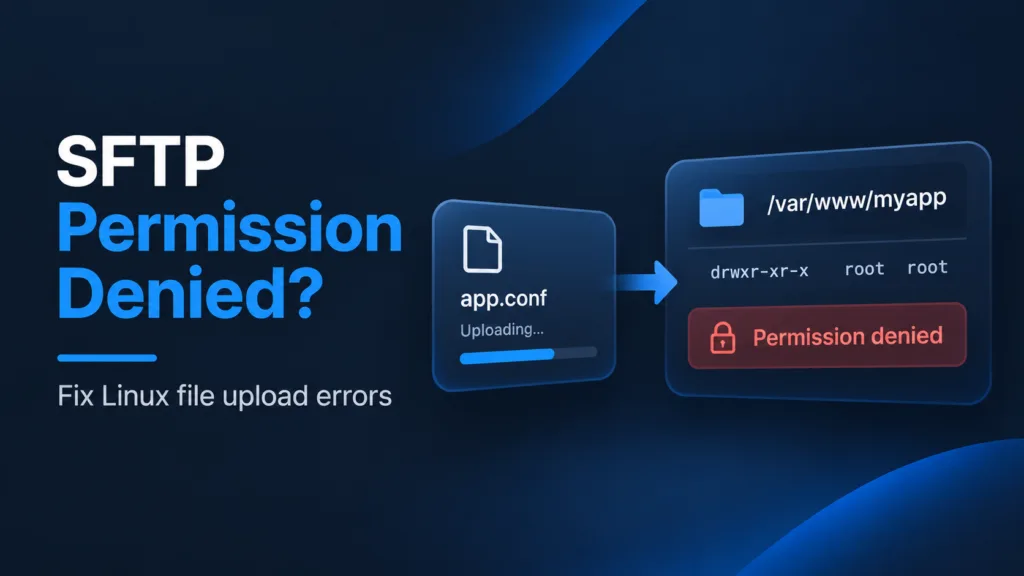
You can connect to your VPS over SSH, browse its files, and even download them. But the moment you try to upload or save a file, SFTP responds with Permission denied.
The connection is working. The problem is usually which Linux user owns the destination directory and whether your SSH account can write to it. Here’s how to find the cause without weakening your server’s security.
1. Check Which User You’re Connected As
Connect through SSH and run:
whoami
id
SFTP normally accesses files using the permissions of your authenticated account. For example, an ubuntu user might be able to read files in /var/www but not overwrite files owned by root or a deployment account.
Important: An SFTP permission denied error during upload is different from an SSH Permission denied (publickey) authentication error. If you cannot connect at all, troubleshoot your SSH key first.
2. Inspect the Destination Directory
Suppose you’re uploading to /var/www/myapp. Check the directory itself:
ls -ld /var/www/myapp
stat /var/www/myapp
For a more complete view of permissions along the path, use:
namei -l /var/www/myappLinux generally requires write and execute permissions on the destination directory to create files there. You also need execute (traversal) permission on each parent directory. Overwriting an existing file can involve different permissions depending on how the SFTP client saves it, including whether it creates a temporary file and renames it.
For example, this directory:
drwxr-xr-x root root /var/www/myappis readable by many users, but only root can create files in it unless other access controls apply.
3. Fix Ownership or Group Access Safely
Don’t run a recursive ownership change on an entire production web directory without checking what is inside. Your app, web server, and deployment workflow may rely on specific owners.
If /var/www/myapp is intended to belong to a dedicated deployment user, an administrator can assign ownership to that user:
sudo chown deploy:deploy /var/www/myappThis changes the directory itself, not its contents. For shared deployments, a dedicated group and carefully scoped group permissions may be more appropriate:
sudo chgrp deployers /var/www/myapp
sudo chmod 2775 /var/www/myapp
The second command enables group write access and the setgid bit, so newly created files and directories generally inherit the directory’s group. Confirm the deployment user is a member of deployers and review the permissions of existing contents separately. ACLs, if configured, can also affect effective access.
Avoid chmod -R 777. It grants broad write access and can expose your application to unnecessary risk.
4. Check the Upload Path
Some directories are intentionally protected:
/etcholds system configuration and typically requires administrator privileges for changes./var/wwwoften contains application files owned by a deployment or service account.- A user’s home directory is usually a safer place for an initial upload.
If you only need to move a configuration file into a protected location, upload it to a writable staging directory first. Then, from an authorized SSH session, move it into place using sudo, after reviewing ownership and permissions:
sudo install -m 640 /home/ubuntu/app.conf /etc/myapp/app.confAdjust the owner, group, mode, and destination to your application’s actual requirements. Do not use this example blindly for secrets or files that need different permissions.
5. Check SFTP Restrictions and Disk State
When permissions appear correct but uploads still fail, check whether the account is restricted to an SFTP chroot or whether filesystem access is constrained by ACLs. An administrator can review relevant sshd_config settings, including Match, ChrootDirectory, and ForceCommand.
Also check available disk space and whether the filesystem is mounted read-only:
df -h
findmnt -no TARGET,OPTIONS /var/www
A full or read-only filesystem can prevent writes, although the error shown by the client may differ from a standard permission-denied response.
6. Upload and Edit Files with Server Explorer
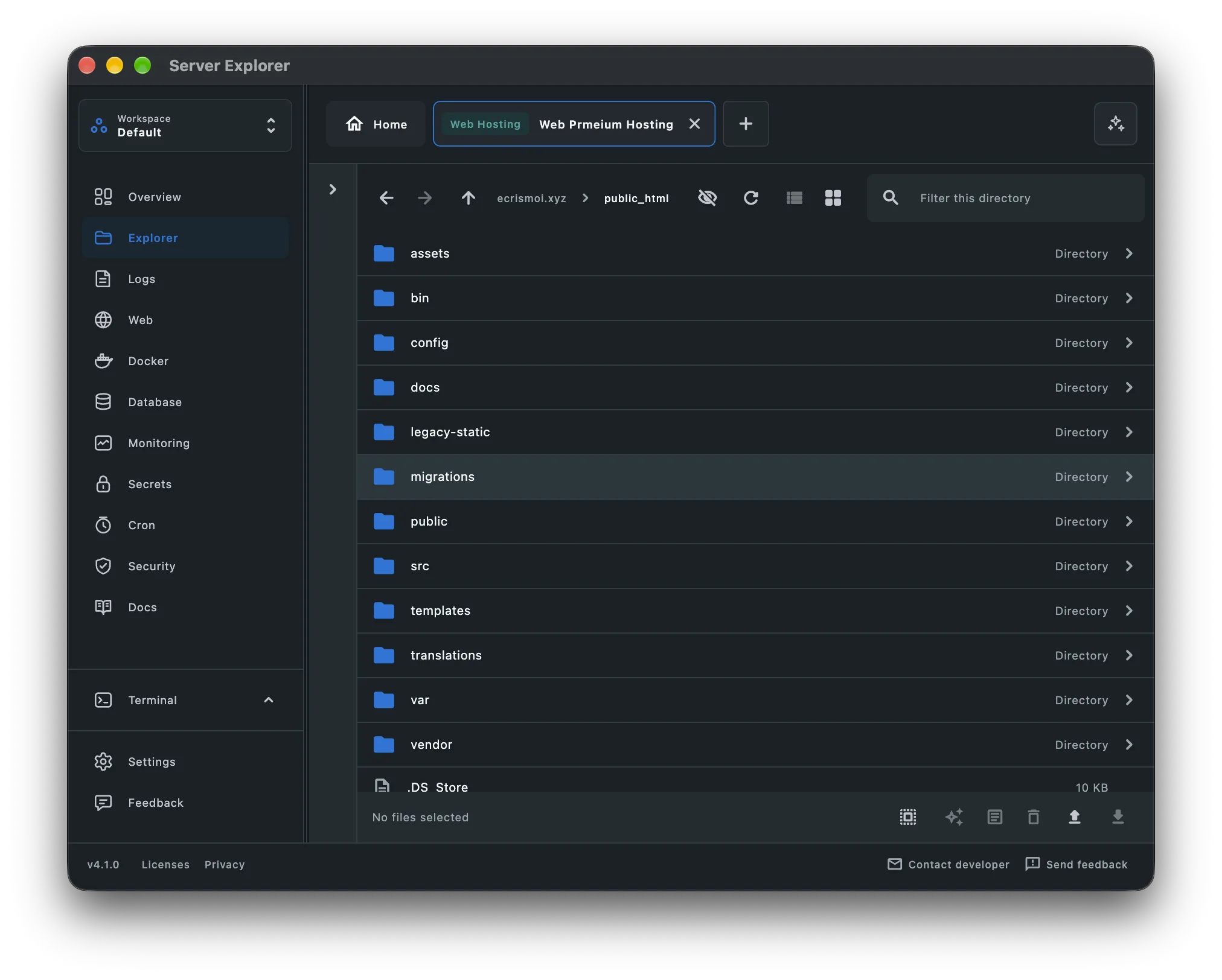
Server Explorer is a desktop SSH client for managing Linux servers visually. Its built-in File Explorer lets you browse remote directories, transfer files, and open files in an integrated editor without switching between separate SSH and file-transfer tools.
Bring your servers into focus.
A desktop app for macOS and Windows. Connect over SSH.
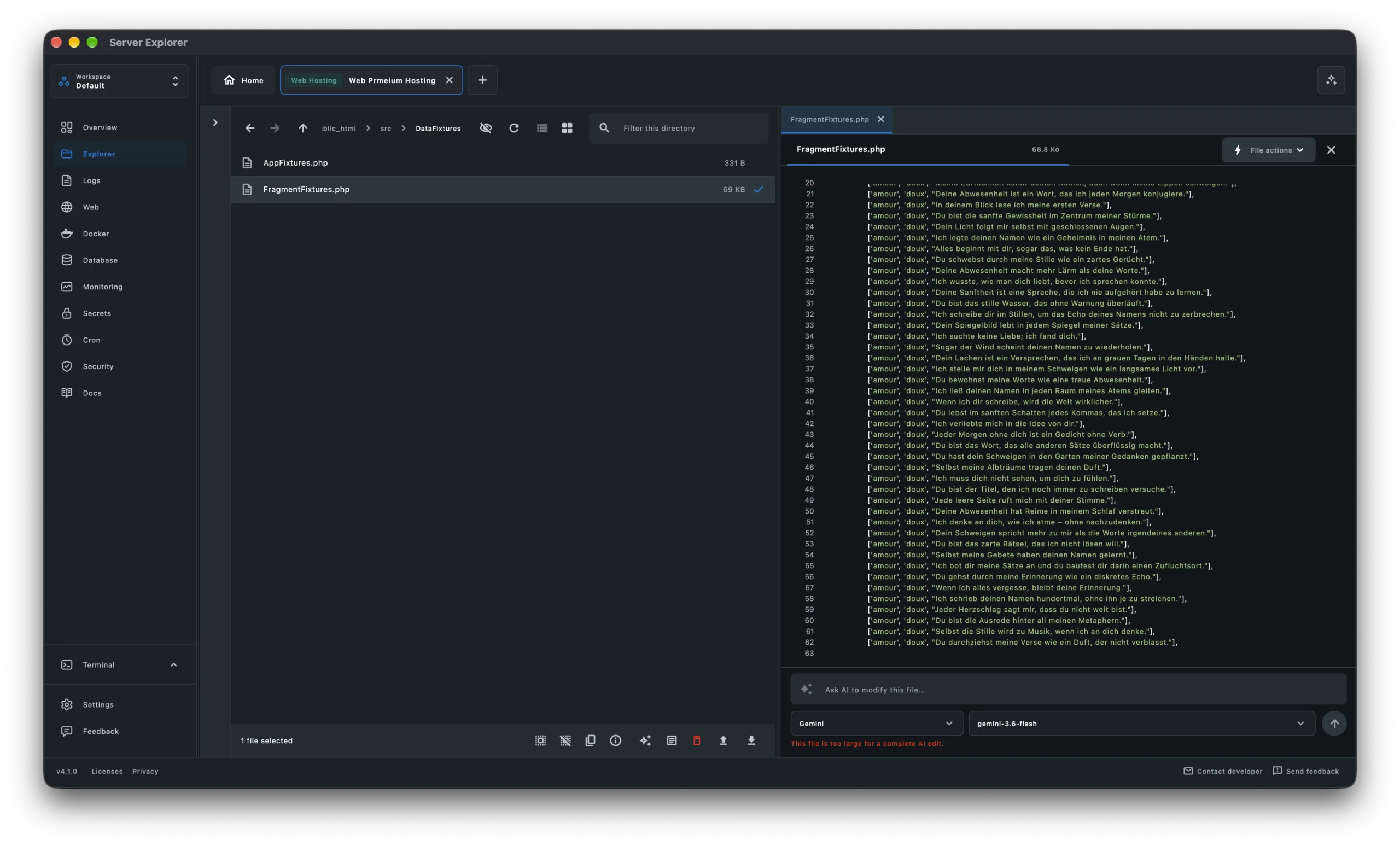
Server Explorer still follows the permissions enforced by Linux. It cannot bypass a directory’s access restrictions. Fix ownership or permissions using an appropriately privileged account, then retry the transfer or save operation.
Quick Troubleshooting Checklist
- Confirm the SSH username with
whoami. - Inspect the destination with
ls -ldandnamei -l. - Verify write and traversal permissions, including ACLs where applicable.
- Use a suitable deployment user or group instead of making directories world-writable.
- Check for chroot restrictions, full disks, and read-only filesystems.
- Retry the upload once the underlying access issue is resolved.
Final Thoughts
An SFTP permission denied error usually means your account lacks the required access to the target path, not that your SSH connection is broken. Start with the username and directory permissions, then investigate ownership and server restrictions. A graphical file manager can make remote file work more convenient, but secure Linux permissions remain essential.
Bring your servers into focus.
A desktop app for macOS and Windows. Connect over SSH.
Relatives articles
- How to Upload a File to a Server via SSH: Command Line & Server Explorer
- SSH Permission Denied (publickey): How to Fix It
- How to Manage Multiple Linux Servers from One Desktop App