
How to Manage Systemd Services on Linux: Start, Stop, Restart, and Troubleshoot
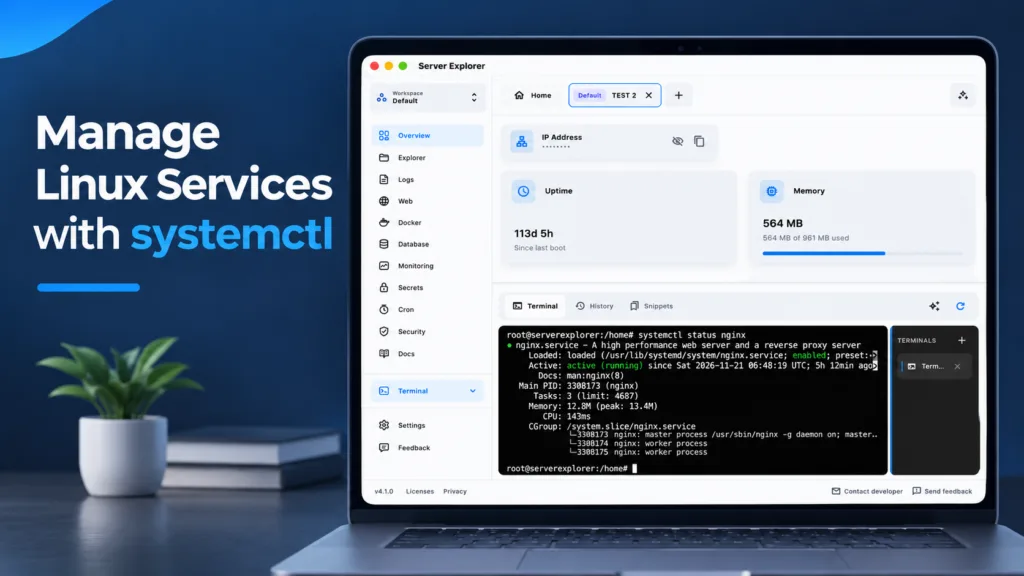
When a website goes offline or a background worker stops processing jobs, the first question is often simple: is its Linux service still running? On most modern Linux distributions, systemd manages those services, while systemctl provides the commands to inspect and control them.
This guide explains the everyday commands, how to investigate failures, and how to make changes safely on a VPS. You’ll also see where a graphical SSH workspace such as Server Explorer fits into the workflow.
What Is a Systemd Service?
A systemd service is a unit that describes a process or group of processes managed by the system. Common examples include nginx.service, ssh.service (or sshd.service on some distributions), and application-specific workers.
Service units typically define how a process starts, when it should restart, which user runs it, and what other units it depends on. Not every application is managed by systemd: Docker containers and PM2-managed Node.js processes may have their own lifecycle controls.
First, confirm that systemd is the system manager:
ps -p 1 -o comm=If the result is systemd, the commands below apply. Replace nginx with the actual service name on your server.
1. List Services and Check Their Status
To list currently loaded service units:
systemctl list-units --type=serviceTo include installed unit files, including disabled ones:
systemctl list-unit-files --type=serviceCheck a specific service:
systemctl status nginxThe output shows whether the unit is active, the main process ID, recent log lines, and possible failure details. For a concise result that works well in scripts:
systemctl is-active nginx
systemctl is-enabled nginx
Important: active means systemd considers the service running; it does not prove that the website or API is healthy. A separate HTTP check may still be necessary.
2. Start, Stop, and Restart a Linux Service
The core systemctl commands are straightforward:
sudo systemctl start nginx
sudo systemctl stop nginx
sudo systemctl restart nginx
A restart stops and starts the service, so it can briefly interrupt requests. On production systems, check whether the service supports reloading configuration without a full restart:
sudo systemctl reload nginxNot every unit supports reload. You can inspect the unit’s capabilities and documentation before using it. For Nginx specifically, validate configuration before applying a change:
sudo nginx -t
sudo systemctl reload nginx
If a command fails, don’t repeatedly restart the service. Inspect the logs first; a bad configuration or missing dependency won’t resolve itself.
3. Enable a Service at Boot
Starting a service now and enabling it at boot are different operations.
sudo systemctl enable nginxThis configures the unit to start automatically when its dependencies and targets are reached. To enable it and start it immediately:
sudo systemctl enable --now nginxTo prevent automatic startup:
sudo systemctl disable nginxDisabling does not stop an already running service. Likewise, stop does not necessarily prevent a future boot-time start.
You may also encounter mask, which blocks manual and dependency-triggered starts. Use it only when that stronger restriction is intentional:
sudo systemctl mask example.service
sudo systemctl unmask example.service
Avoid masking SSH, networking, or other essential units on a remote server unless you have a recovery plan.
4. Read Service Logs with Journalctl
When a service fails, its journal is often the fastest place to start:
sudo journalctl -u nginx --no-pager -n 50Follow new log entries as they arrive:
sudo journalctl -u nginx -fInspect messages from the current boot:
sudo journalctl -u nginx -bLook for concrete errors: a port already in use, a missing file, an invalid directive, permission problems, or an application that exits immediately.
For a wider introduction to visual versus terminal-based server workflows, see Server Management GUI vs CLI.
5. Troubleshoot a Service That Won’t Start
A reliable investigation usually follows this sequence:
- Check the state:
systemctl status your-service. - Read recent logs:
sudo journalctl -u your-service -n 100 --no-pager. - Validate configuration: use the application’s own configuration-test command when available.
- Check dependencies and ports: confirm required files, permissions, databases, and listening ports.
- Apply one fix at a time: then start or restart the service and recheck its status.
For example, if Nginx reports that port 80 is occupied, identify the listener before stopping anything:
sudo ss -ltnp '( sport = :80 )'A service may also fail because it reaches its start-rate limit after repeated crashes. Once the underlying issue is fixed, you can clear the failed state and try again:
sudo systemctl reset-failed nginx
sudo systemctl start nginx
reset-failed clears systemd’s failed state and rate-limit counters; it does not repair the original problem.
If the service belongs to a website and the browser displays a gateway error, investigate both the web server and its upstream application. A running Nginx service does not guarantee that the backend is reachable.
6. Inspect or Edit a Systemd Unit Safely
To view the unit definition and any overrides:
systemctl cat nginxFor a custom service, prefer a drop-in override over editing a packaged unit file directly:
sudo systemctl edit your-service.serviceAfter changing unit files, tell systemd to reload its configuration:
sudo systemctl daemon-reload
sudo systemctl restart your-service
daemon-reload updates systemd’s unit definitions; it does not automatically restart the running application. Review changes carefully before restarting a production service.
7. Manage Linux Services with Server Explorer
A terminal remains useful for precise diagnostics, but jumping between multiple VPS sessions can slow down routine checks. Server Explorer is a desktop SSH application for macOS and Windows that brings server metrics, files, logs, and an integrated terminal into one workspace.
For systemd work, use the service controls available in your installed version to inspect services and perform supported actions. When you need to investigate a failure in depth, the integrated terminal lets you run systemctl and journalctl without switching to a separate SSH client. Available actions depend on the Linux distribution, installed services, and the permissions of your SSH account.
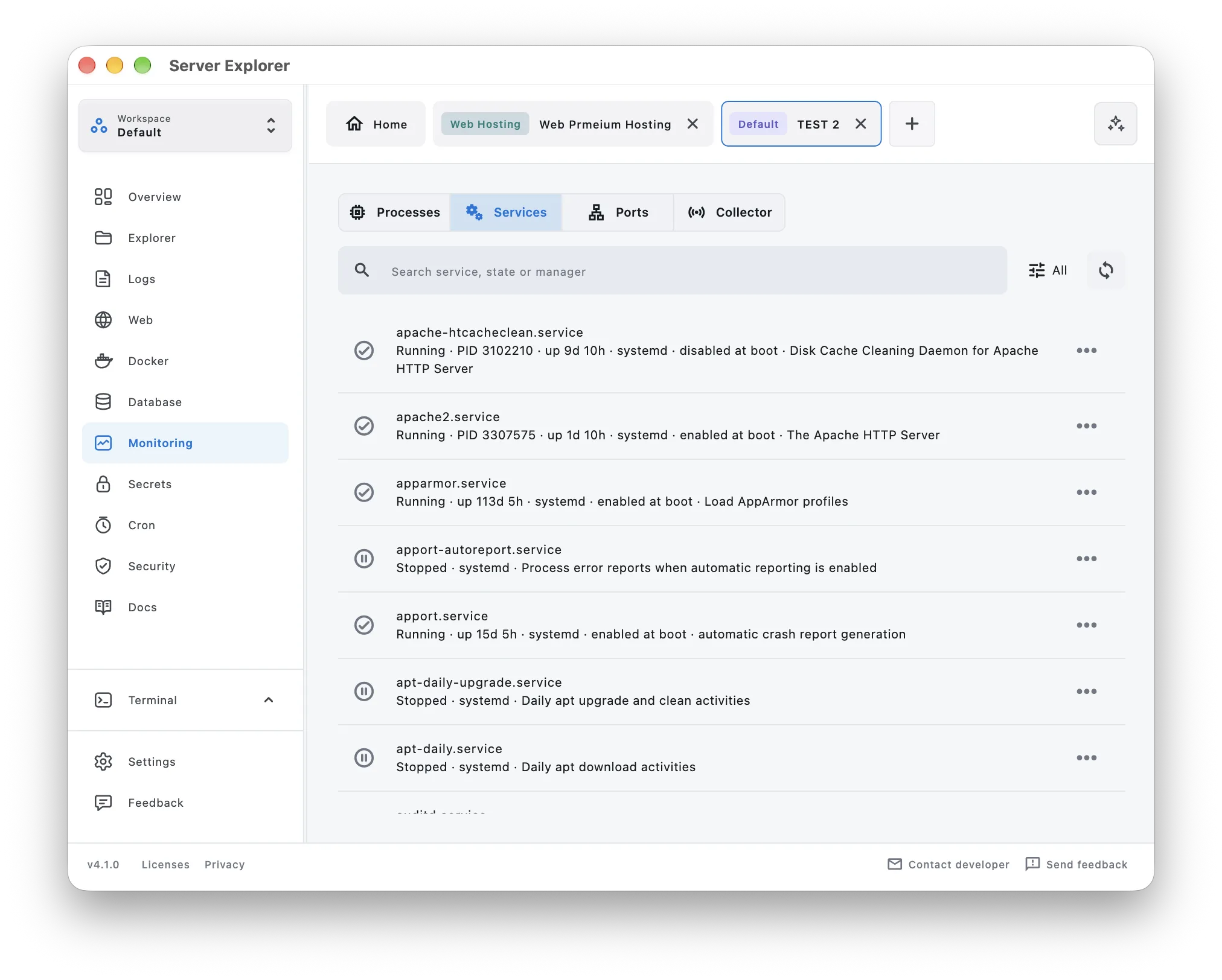
Review Linux services and available actions from the Server Explorer desktop workspace.Bring your servers into focus.
A desktop app for macOS and Windows. Connect over SSH.
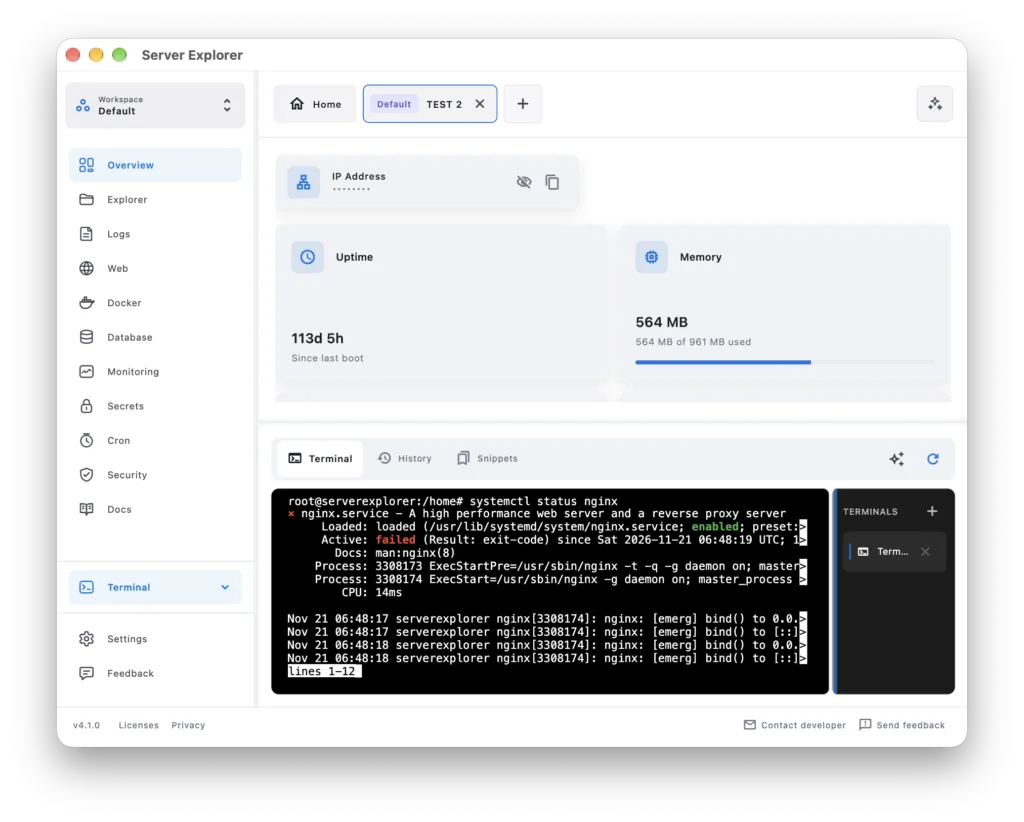
Use the integrated SSH terminal for detailed systemd diagnosticsIf you’re new to visual VPS administration, read How to Manage a VPS Without the Command Line for the broader workflow.
Quick Systemctl Cheat Sheet
| Task | Command |
|---|---|
| Show service status | systemctl status nginx |
| Start service | sudo systemctl start nginx |
| Stop service | sudo systemctl stop nginx |
| Restart service | sudo systemctl restart nginx |
| Reload configuration (if supported) | sudo systemctl reload nginx |
| Enable at boot | sudo systemctl enable nginx |
| Disable at boot | sudo systemctl disable nginx |
| View recent logs | sudo journalctl -u nginx -n 50 |
| View unit definition | systemctl cat nginx |
| Reload unit files | sudo systemctl daemon-reload |
Final Thoughts
Learning to manage systemd services is a practical part of running a Linux VPS. Start by checking service status, use logs to understand failures, and distinguish between restarting a service and enabling it at boot. On production servers, validate configuration and consider the impact of downtime before making changes.
For a more visual day-to-day workflow, Server Explorer keeps your SSH terminal alongside the other tools you use to manage a VPS.
Bring your servers into focus.
A desktop app for macOS and Windows. Connect over SSH.