
Vibe Coding Deployment: Who Manages Your Server?
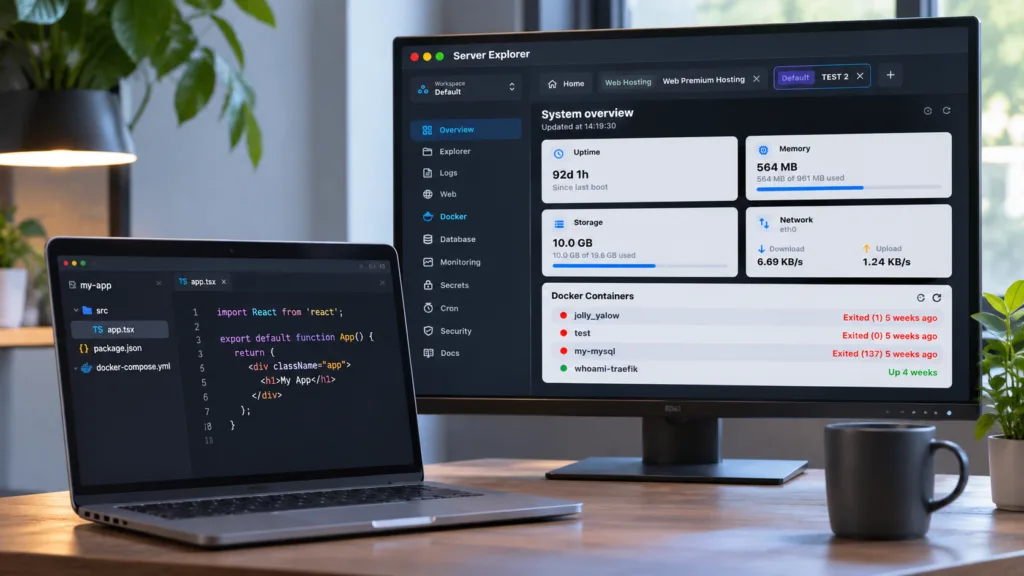
You describe an idea to an AI coding assistant. A few prompts later, you have a working app. The interface looks good, the API responds, and everything runs on your laptop.
Then comes the question nobody asked during the demo:
Who’s going to keep it running in production?
That’s the part of vibe coding deployment that deserves more attention. Generating code is one step. Operating an app on a Linux server is another.
AI Makes Building Easier. Deployment Is Another Story.
Tools like Cursor, Claude Code, and Codex can help you write code, troubleshoot errors, and prepare deployment instructions. But once your app is running on a VPS, you still need to understand the environment around it.
Is the application process running? Did the latest deployment restart correctly? Is the database reachable? Is the server running out of memory?
An AI assistant may help you investigate these questions, but you still need access to reliable information about the server.
What Happens After You Deploy an AI-Generated App?
Imagine you’ve deployed a small SaaS app on a Linux VPS using Docker or a process manager.
The homepage works. You share the link. A few hours later, users report an error.
You now have to check several things:
- Application logs: What failed, and when?
- Processes and services: Is the app still running?
- Docker containers: Did a container exit or restart?
- Server resources: Is CPU, memory, or disk usage unusually high?
- Configuration files: Are the environment settings correct?
These are normal production tasks, whether you wrote every line yourself or generated much of the app with AI.
Your AI Assistant Doesn’t Replace Server Visibility
You could ask an AI coding agent to run commands over SSH. That can be useful, especially when you understand what the commands do and can review their effects.
But a visual overview solves a different problem: seeing what’s happening without reconstructing the state of your server from scattered terminal output.
For example, instead of running several commands just to inspect your setup, you might prefer to see your running processes, Docker containers, and resource usage in one place.
That doesn’t make the terminal obsolete. It gives you another way to work.
Manage Your VPS Visually with Server Explorer
Server Explorer is a desktop SSH application for managing remote Linux servers from macOS and Windows.
It brings common server tasks into one interface, including:
- Connecting to your VPS over SSH
- Browsing and editing server files
- Using an integrated terminal
- Inspecting Docker containers and logs
- Viewing CPU, RAM, and disk usage
- Managing processes and systemd services
- Switching between multiple servers
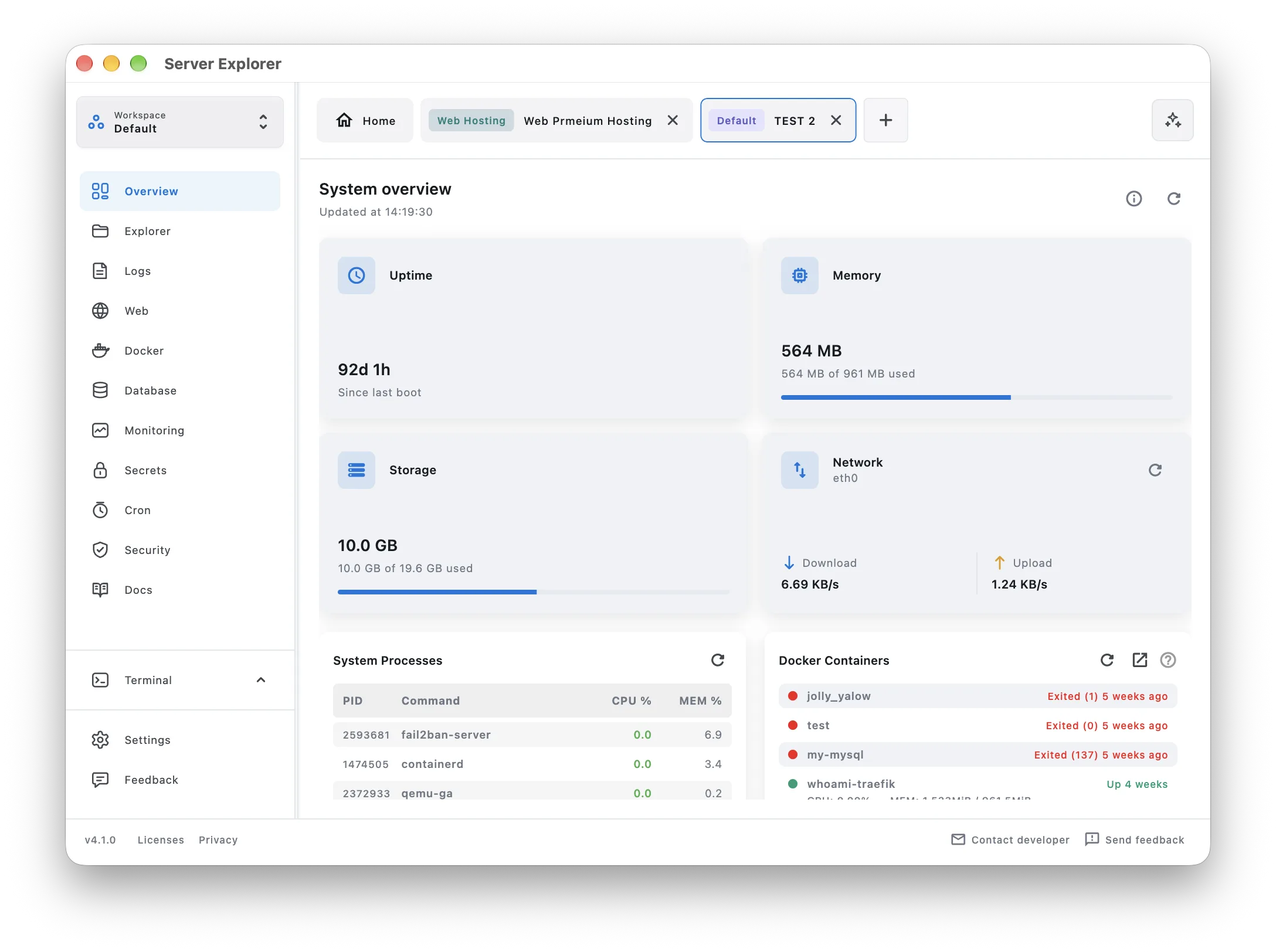
For an indie hacker maintaining a small production app, the value isn’t avoiding Linux altogether. It’s spending less time switching between tools just to understand what’s running.
Server Explorer is not a one-click deployment platform. You’ll still need to configure your application, deploy it, secure your server, and handle backups. It helps with the ongoing management work around those tasks.
A Simple Post-Deployment Checklist
Before sharing your AI-built app with real users, verify that:
- Your application starts again after a server reboot.
- You know where to read its logs.
- Required environment variables are configured securely.
- You can check memory, CPU, and available disk space.
- You have a backup and a way to recover from a failed deployment.
If you can answer those five questions, you’re already better prepared for your first production incident.
Final Thoughts
AI can help you build an app faster than ever. It doesn’t remove the responsibility of keeping that app available, secure, and understandable once people start using it.
You don’t have to become a full-time DevOps engineer to manage a small VPS. But you do need a workflow that makes production less mysterious.
Build with AI. Understand your server.
Bring your servers into focus.
A desktop app for macOS and Windows. Connect over SSH.