
Docker Container Keeps Restarting? 5 Things to Check
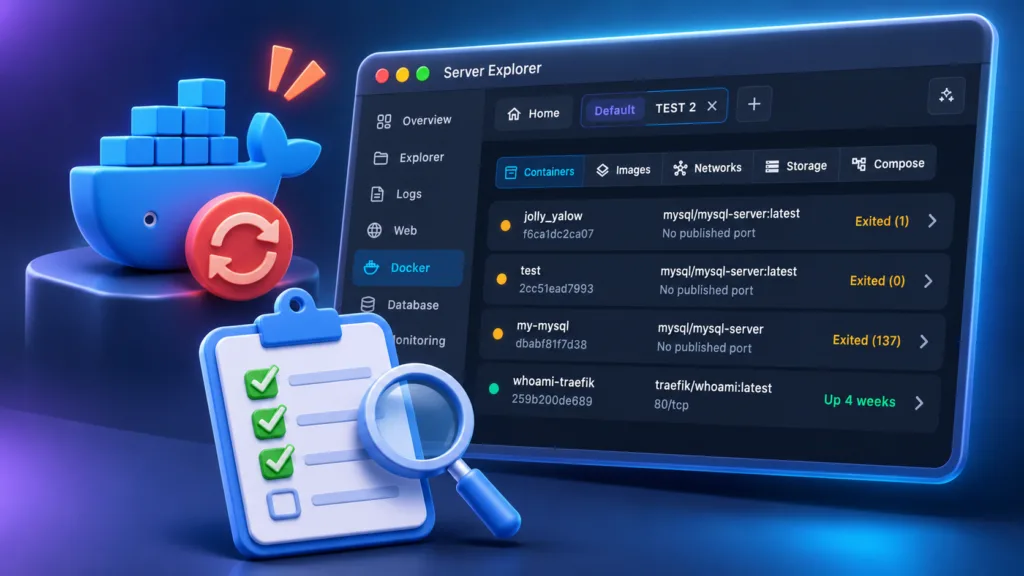
You deploy your app, start the Docker container, and everything looks fine.
A few seconds later, it restarts. Then again. And again.
If your Docker container keeps restarting, the problem usually isn’t Docker itself. It’s often a crashing application, a missing environment variable, or an incorrect startup command.
Here’s how to find the cause.
1. Check the Container Logs
Start with the logs. They often tell you exactly what went wrong.
docker ps -a
docker logs --tail 100 my-container
Look for errors such as:
- Missing environment variables
- Database connection failures
- Invalid configuration files
- Application startup exceptions
If the container is restarting continuously, you can follow its output:
docker logs -f my-containerTip: Don’t restart a failing container repeatedly without reading the error. You’ll likely reproduce the same failure.
2. Inspect the Exit Code
Docker records the exit status of a container’s main process.
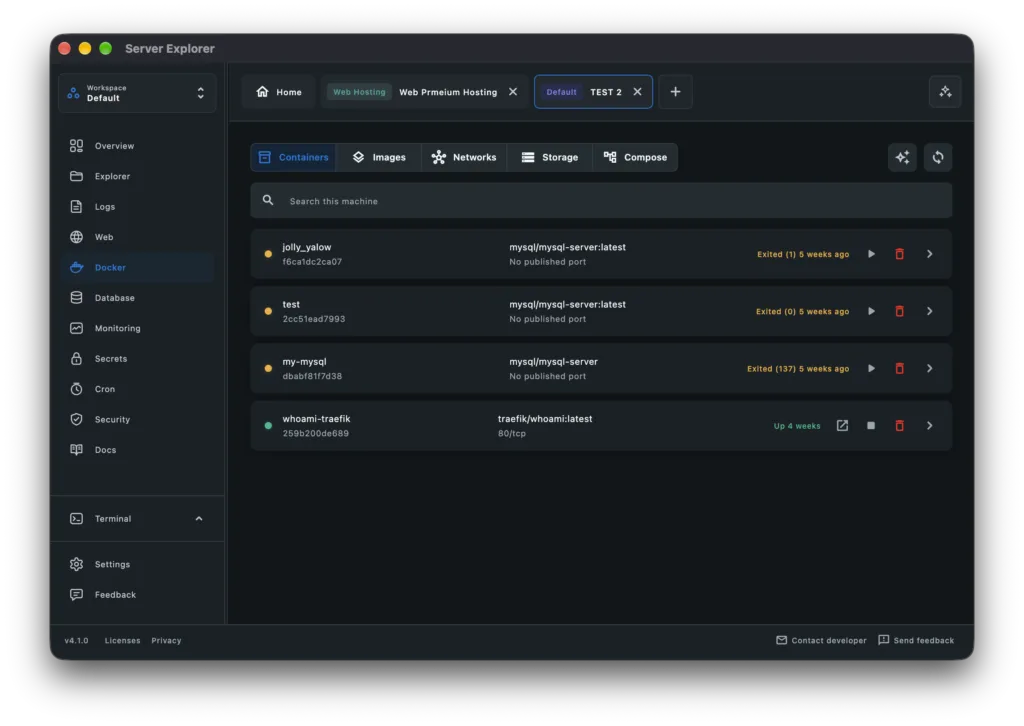
Run:
docker inspect my-container --format '{{.State.ExitCode}}'Some useful exit codes:
| Exit code | Meaning |
|---|---|
| 0 | Process exited successfully |
| 1 | General application error |
| 126 | Command cannot be invoked |
| 127 | Command not found |
| 137 | Process received SIGKILL, sometimes because of an out-of-memory condition |
Exit code 137 doesn’t automatically prove your server ran out of memory.
Check whether Docker recorded an OOM kill:
docker inspect my-container --format '{{.State.OOMKilled}}'3. Verify Environment Variables
Your application may work locally but fail on your VPS because its environment is different.
Common examples include:
- Missing
DATABASE_URL - Incorrect database credentials
- Missing application secrets
- Wrong production configuration
Check your Docker Compose configuration and confirm that the required variables are provided.
Be careful when inspecting environment variables: they may contain credentials or API keys.
4. Check the Restart Policy
A restart policy can make a failing container appear to be stuck in an endless loop.
Inspect it with:
docker inspect my-container --format '{{.HostConfig.RestartPolicy.Name}}'Policies such as always or unless-stopped can restart a container after its main process exits.
You can temporarily disable automatic restarts while investigating:
docker update --restart=no my-container
docker stop my-container
This changes the container’s restart behavior. Restore the intended policy after fixing the underlying problem.
5. Check Server Resources
Sometimes the problem is outside the application.
Check available memory and disk space:
free -h
df -h
docker stats --no-stream
Low memory, a full disk, or resource limits can cause applications to fail.
If you’re running multiple containers on a small VPS, investigate resource usage before increasing limits or upgrading your server.
A Visual Way to Investigate Docker Issues
You don’t always need to remember every Docker command.
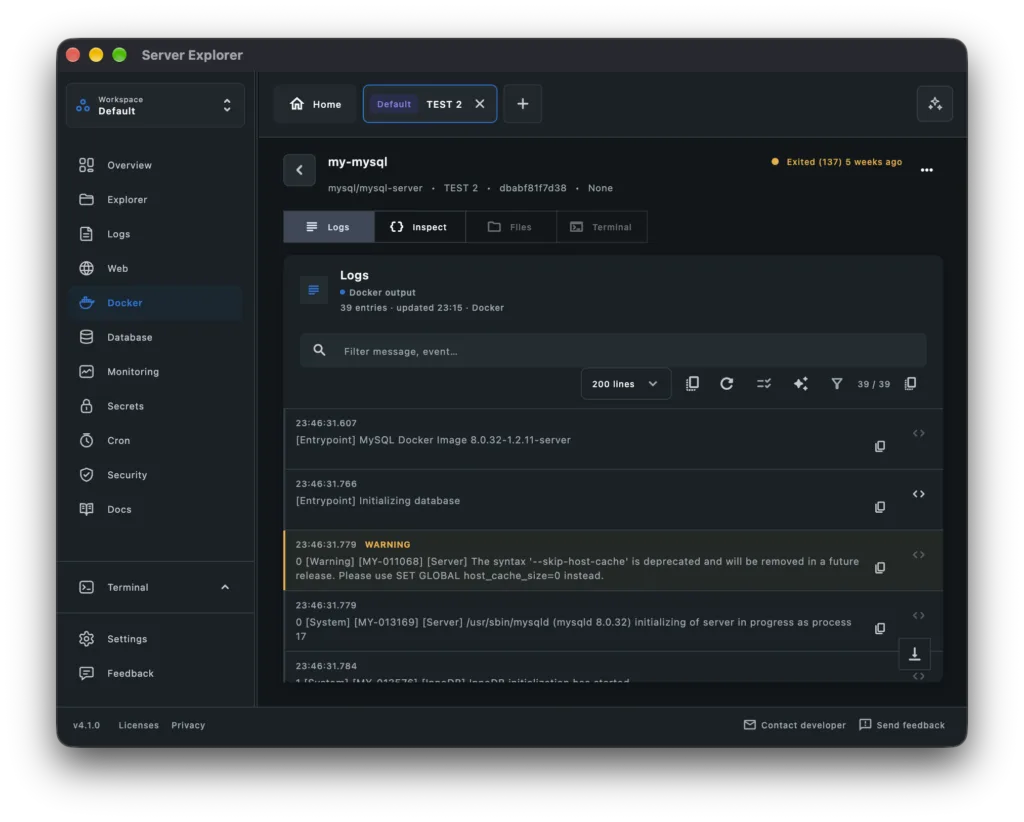
With Server Explorer, you can connect to your Linux server over SSH and inspect your Docker environment through a desktop interface.
You can:
- View containers and their status
- Inspect container logs
- Manage containers
- Explore Docker networks
- Monitor server resources
This makes it easier to move between Docker diagnostics and server monitoring without switching between several tools.
Bring your servers into focus.
A desktop app for macOS and Windows. Connect over SSH.
Final Thoughts
When a Docker container keeps restarting, follow a simple order:
- Read its logs.
- Check its exit code.
- Verify its environment variables.
- Inspect its restart policy.
- Check server resources.
The important part isn’t stopping the restart loop. It’s understanding why the application exits in the first place.
Fix the underlying issue, then restart the container and verify that it stays healthy.