
How to Find and Kill a Process on a Port in Linux
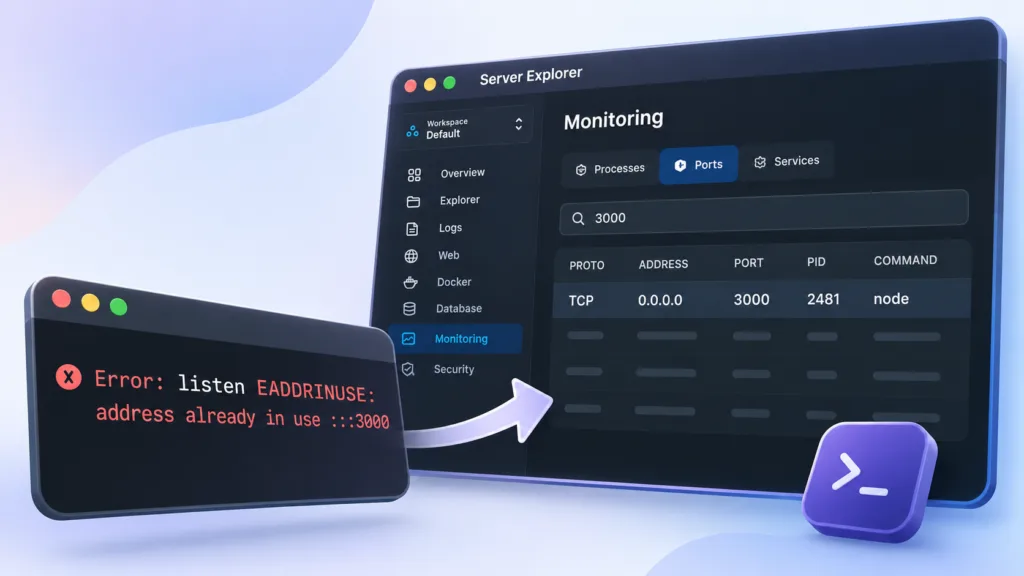
You start your Node.js app, and the terminal throws an error:
Error: listen EADDRINUSE: address already in use :::3000Something is already listening on port 3000. It might be an older instance of your app, a service managed by systemd, or a Docker container.
Here’s how to find the process, stop it safely, and avoid the same problem next time.
1. Find Which Process Is Using the Port
On most modern Linux servers, ss is a good place to start:
sudo ss -ltnp '( sport = :3000 )'The output shows listening TCP sockets, including the local address and, when available, the process name and PID. The sudo prefix helps reveal processes owned by other users.
You can also use lsof if it is installed:
sudo lsof -nP -iTCP:3000 -sTCP:LISTENExample output:
COMMAND   PID USER   FD   TYPE DEVICE SIZE/OFF NODE NAME
node     2481 app    21u  IPv6  12345      0t0  TCP *:3000 (LISTEN)
Here, 2481 is the process ID (PID). Don’t kill it yet: first check what it is.
ps -fp 2481Note: If
ssreturns no listener, check that you are looking at the correct server and network namespace. A Docker-published port may be managed differently from a regular host process.
2. Find the Port Visually in Server Explorer
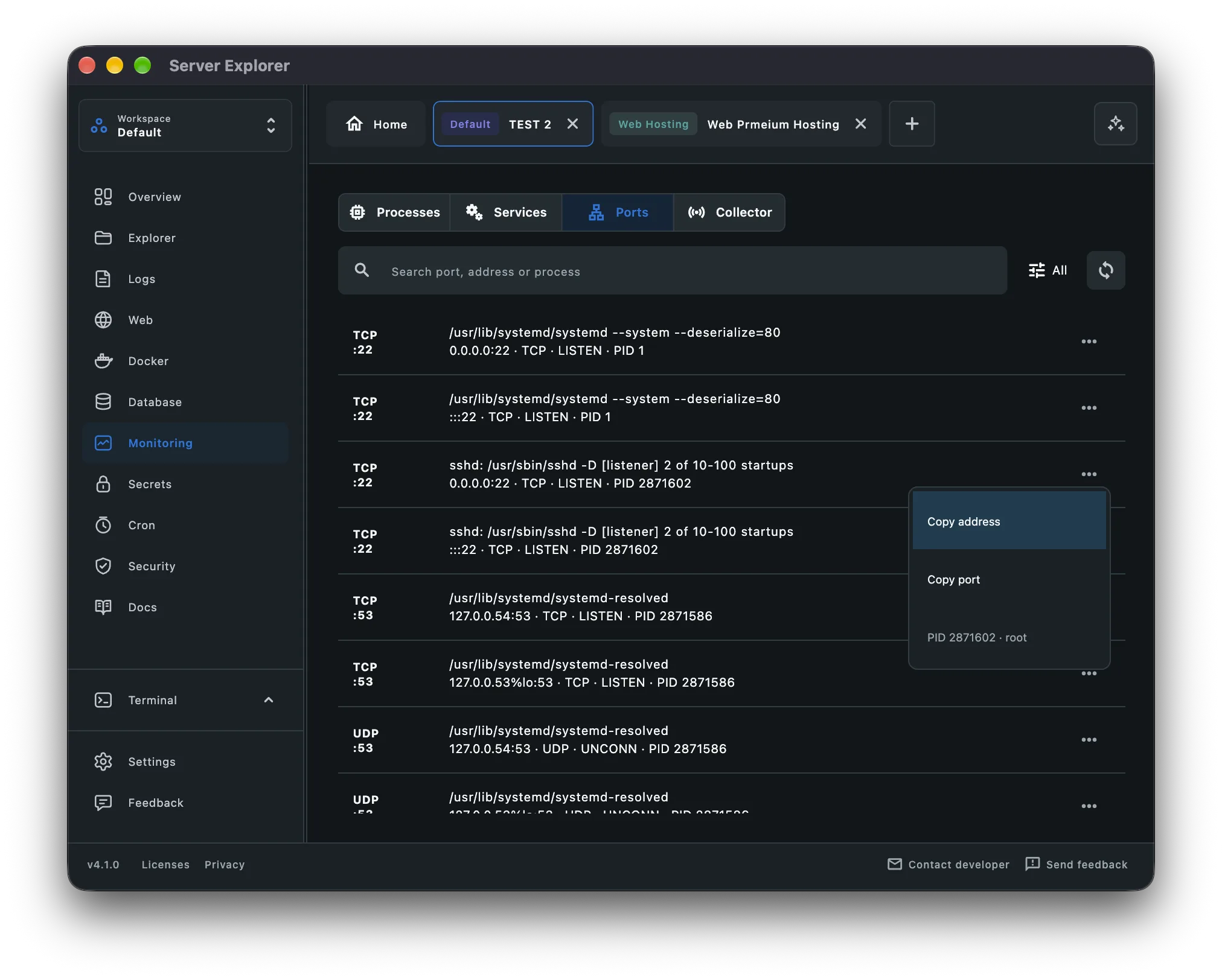
If you prefer a graphical view, connect to your VPS in Server Explorer and open Monitoring → Ports.
The Ports tab shows listening addresses, protocols, associated commands, and PIDs where available. Use the search field to look for 3000, an address, or a process name.

Bring your servers into focus.
A desktop app for macOS and Windows. Connect over SSH.
In the screenshot, the Ports view lists TCP and UDP entries and their PIDs. Its context menu includes actions to copy an address or port. It does not show a kill action in this view. Once you identify the PID, switch to Processes.
3. Stop the Process Safely
If you have confirmed that the process should be stopped, first try a normal termination signal:
kill 2481This sends SIGTERM, giving the process a chance to shut down gracefully. Verify that the port is free:
sudo ss -ltnp '( sport = :3000 )'If the process ignores termination, investigate why before escalating. As a last resort:
kill -9 2481SIGKILL stops a process immediately and prevents graceful cleanup. Avoid it when a normal shutdown is possible.
Stop a process with Server Explorer
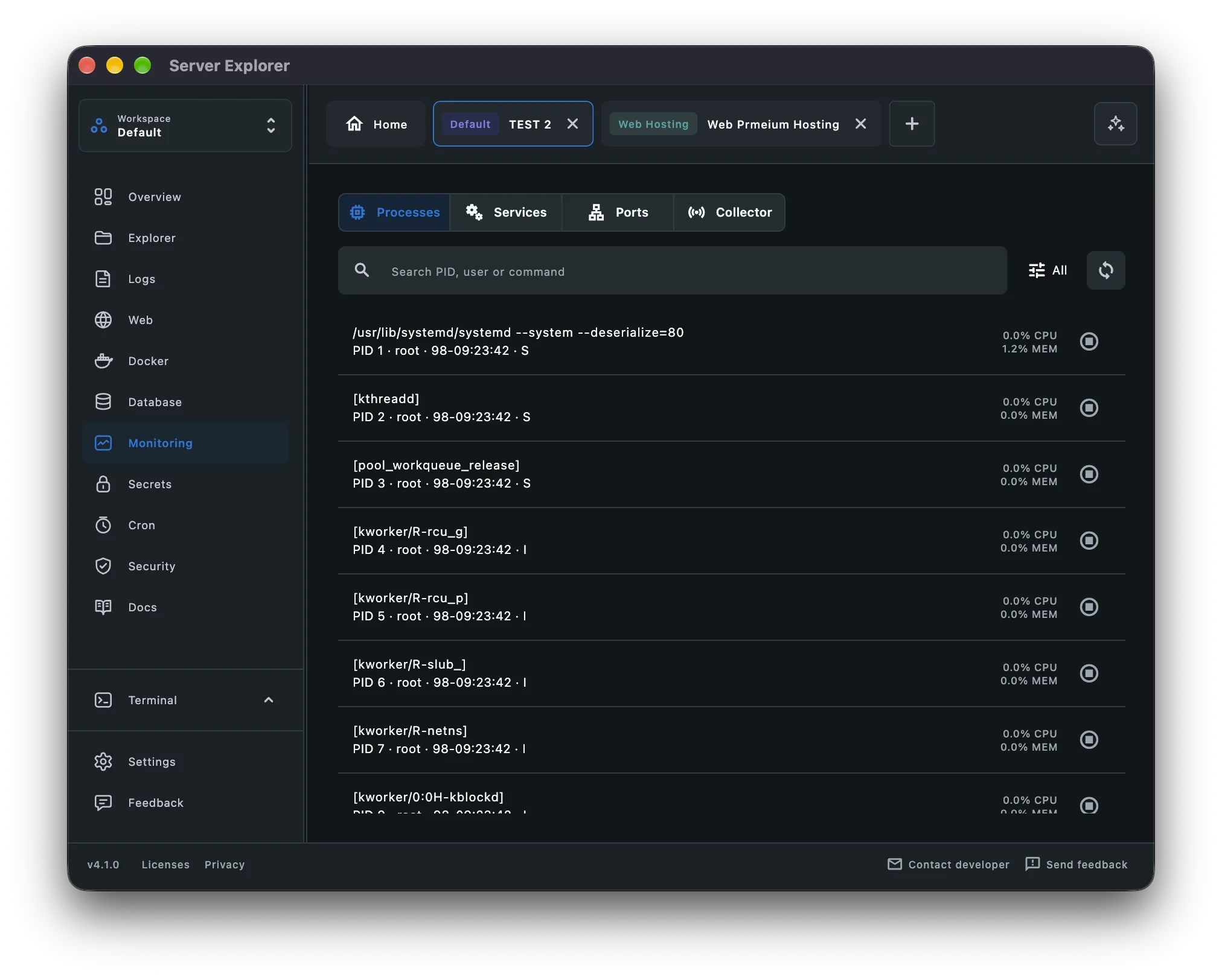
In Monitoring → Processes, search for the PID or command you identified in the Ports tab. Review the matching entry, then use the stop control if you’re sure it is the correct process.

Bring your servers into focus.
A desktop app for macOS and Windows. Connect over SSH.
This is particularly useful when you manage several VPS instances and want to confirm which server and process you’re acting on.
Important: Do not terminate system processes such as PID 1, sshd, or other critical services just because they appear in the list. Stopping the wrong process can interrupt your server or disconnect your SSH session.
4. What If the Process Keeps Coming Back?
A process that immediately restarts is often being supervised. Killing its PID may only provide a temporary fix.
systemd: Check the service and stop it through its manager:
sudo systemctl status my-app.service
sudo systemctl stop my-app.service
PM2: If your Node.js app is managed by PM2, inspect its process list and stop the intended app:
pm2 list
pm2 stop my-app
Run PM2 commands as the user that owns the PM2 process list.
Docker: Check running containers and stop the relevant container instead of blindly killing host PIDs:
docker ps
docker stop my-container
If the container restarts, inspect its restart policy and logs. If port 3000 is published by Docker, check the container’s port mappings before changing anything.
5. Prevent Port Conflicts Next Time
A few habits help prevent repeated EADDRINUSE errors:
- Use a process manager such as systemd or PM2 instead of launching duplicate background instances manually.
- Document your ports, especially when multiple apps share one VPS.
- Check existing listeners before changing a service’s port.
- Stop services through their manager rather than repeatedly killing child processes.
- Confirm the server context before stopping anything in production.
Final Thoughts
To fix an address already in use error on Linux, identify the listening port, inspect its PID, and stop the responsible process through the appropriate manager.
You can do that with ss, lsof, and kill, or inspect Ports and Processes visually in Server Explorer.
If you regularly manage Linux VPS instances, explore Server Explorer to work with processes, services, Docker, and other server tools from one desktop application.
Bring your servers into focus.
A desktop app for macOS and Windows. Connect over SSH.