
How to Manage Multiple Linux Servers from One Desktop App
Managing one Linux server is straightforward. You open an SSH session, run a few commands, and get back to work.
Managing five servers is different. One VPS hosts your website, another runs a database, and a third handles background jobs. Soon, you’re juggling terminal windows, SSH keys, Docker containers, and service logs. The difficult part isn’t always the commands. It’s remembering which server you’re working on.
Here’s a practical way to manage multiple Linux servers without losing track of your infrastructure.
1. Give Every Server a Clear Identity
Before opening another SSH session, make your server list easy to understand.
Use names that describe each machine’s purpose and environment:
production-web— your public-facing applicationproduction-db— your database serverstaging-api— your test environmentworker-01— background jobs
Keep a record of each server’s hostname or IP address, SSH username, and authentication method. Avoid storing private keys or passwords in a shared spreadsheet.
Clear names reduce the risk of running a production command on a staging server, or the reverse.
2. Use SSH Configuration to Reduce Repetition
If you connect from a terminal, your local ~/.ssh/config file can simplify commands:
Host production-web
    HostName 203.0.113.10
    User deploy
    IdentityFile ~/.ssh/id_ed25519_prod

Host staging-api
    HostName 203.0.113.20
    User ubuntu
    IdentityFile ~/.ssh/id_ed25519_staging
These addresses are examples. Replace them with your actual server details.
Now you can connect with:
ssh production-webInstead of repeatedly typing an IP address, username, and key path.
This works well for terminal-based workflows, but it doesn’t automatically give you a visual overview of your servers, containers, files, or services.
3. Keep Multiple SSH Connections in One Workspace
Opening a new terminal window for every VPS works until you have several environments to inspect at once.
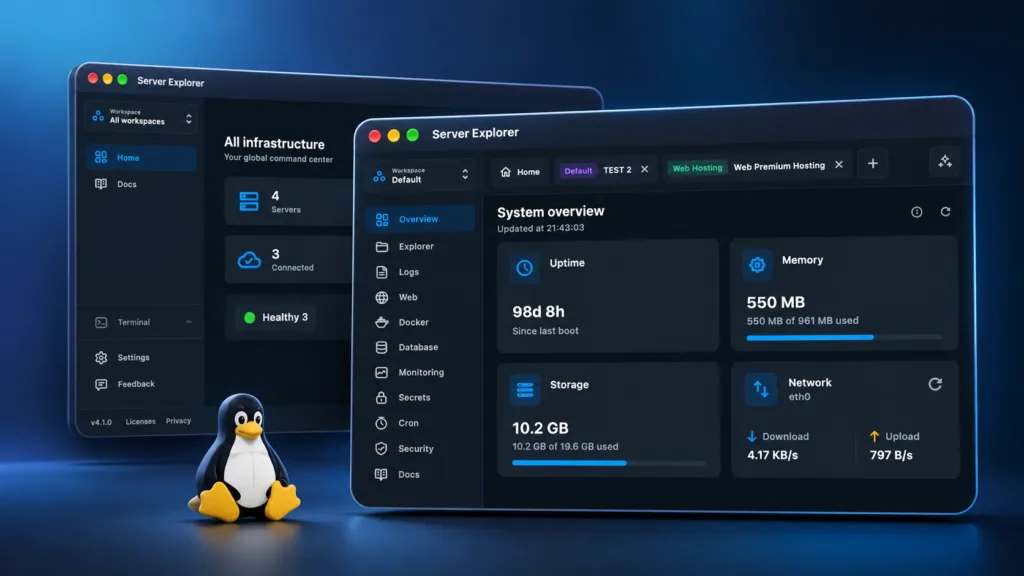
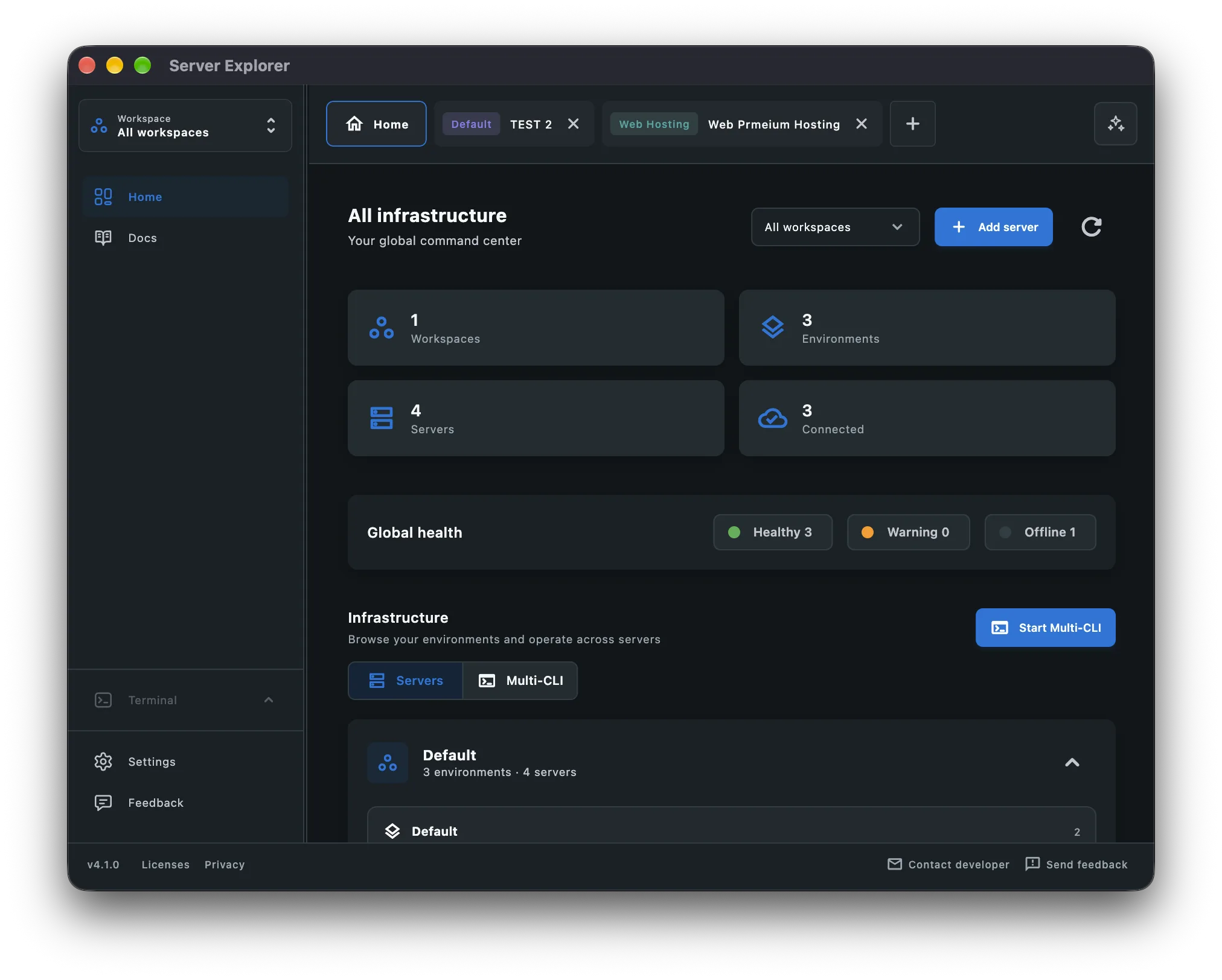
A desktop SSH client such as Server Explorer helps organize those connections in one interface. You can connect to multiple Linux servers, keep them open in separate server tabs, and switch between them without rebuilding your workspace each time.
Bring your servers into focus.
A desktop app for macOS and Windows. Connect over SSH.
For example, you might:
- Open
production-webto investigate an application issue. - Switch to
production-dbto check server resources. - Return to
production-weband continue in its integrated terminal.
The important advantage is context: each server has its own workspace, rather than becoming another anonymous terminal window.
4. Inspect More Than the Terminal
SSH is essential, but managing a server often means moving between several kinds of information.
When something goes wrong, you may need to:
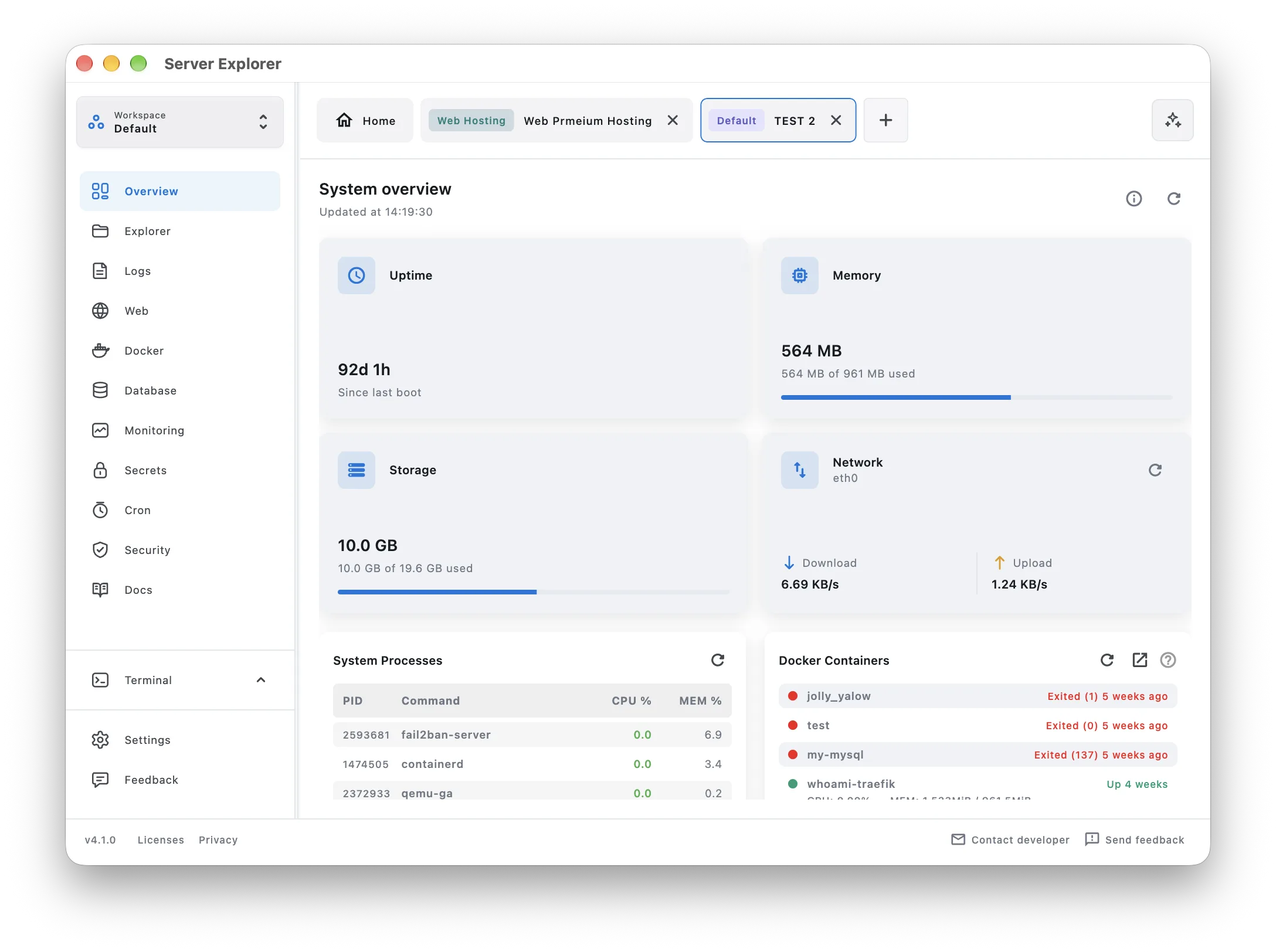
- Check CPU, memory, and disk usage.
- Inspect running processes and services.
- Review Docker containers and their status.
- Browse application files or update a configuration file.
- Open a terminal for commands that need direct control.
Server Explorer brings these workflows into a visual desktop interface over SSH. Instead of memorizing a different command for every routine check, you can inspect the relevant area and use the terminal when it is the better tool.
This is particularly useful for freelancers and indie developers maintaining several small VPS instances without a dedicated operations team.
5. Avoid the Most Common Multi-Server Mistakes
A cleaner interface helps, but a few habits matter just as much:
Double-check the target server. Before restarting a service, editing a file, or deleting a container, confirm the hostname and environment.
Use separate SSH keys where appropriate. Distinct credentials can limit the impact of a compromised key. Protect private keys with suitable file permissions and passphrases.
Prefer least-privilege accounts. Don’t use root for every routine task simply because it’s convenient.
Keep backups outside the server. A dashboard doesn’t replace tested backups and a recovery plan.
Don’t confuse visibility with monitoring. A desktop overview is useful while you’re connected. For failures that happen while you’re away, configure dedicated monitoring and alerts.
Final Thoughts
You don’t need a complex infrastructure platform just to manage a handful of Linux servers. Start with clear server names, reliable SSH authentication, and a workflow that makes it obvious which machine you’re operating on.
Bring your servers into focus.
A desktop app for macOS and Windows. Connect over SSH.
The goal isn’t to stop using the terminal. It’s to spend less time switching between tools and more time understanding what’s happening on each server.