
Cron Job Not Running? 7 Things to Check on Linux
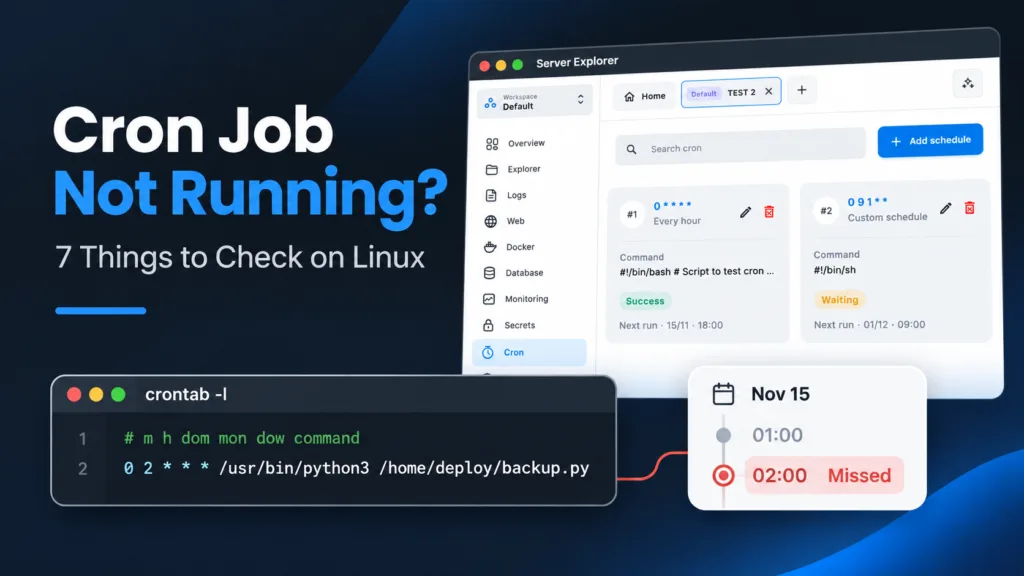
Your backup script works perfectly when you run it in a terminal. But when cron is supposed to execute it overnight, nothing happens.
A cron job not running is usually caused by a small difference between your interactive shell and the environment cron uses. Here are seven checks to find the problem without guessing.
1. Check Your Crontab Syntax
First, list the scheduled jobs for your current user:
crontab -lA typical user crontab entry looks like this:
*/5 * * * * /usr/bin/python3 /home/deploy/scripts/task.pyThe five fields mean minute, hour, day of month, month, and day of week. This example runs every five minutes.
Edit the crontab with crontab -e. Watch out for a common mistake: entries in /etc/crontab and /etc/cron.d/ include an additional username field, while entries created with crontab -e do not.
Also check that you’re inspecting the correct user’s crontab. sudo crontab -l shows root’s jobs, not yours.
2. Make Sure the Cron Service Is Running
On Ubuntu or Debian, check:
sudo systemctl status cronOn some distributions, including many RHEL-based systems, the service is named crond:
sudo systemctl status crondIf the appropriate service is stopped, start it:
sudo systemctl start cronReplace cron with crond where applicable. If the service is missing, check whether the cron package is installed before troubleshooting the job itself.
3. Use Absolute Paths Everywhere
Cron usually starts with a limited PATH and does not necessarily run from your project’s directory. A command that works in your terminal may therefore fail under cron.
Instead of:
0 2 * * * python3 backup.pyUse explicit paths and set the working directory when necessary:
0 2 * * * cd /home/deploy/app && /usr/bin/python3 /home/deploy/app/backup.pyFind the executable path with command -v python3 or command -v node. If you use a virtual environment, point to its interpreter directly.
4. Check Environment Variables
Cron does not automatically load the same shell startup files as an interactive terminal. Variables such as DATABASE_URL, NODE_ENV, or a custom PATH might be missing.
You can define non-sensitive values in the crontab:
SHELL=/bin/sh
PATH=/usr/local/bin:/usr/bin:/bin
For application-specific configuration, use a controlled wrapper script or your application’s configuration mechanism. Avoid printing secrets into logs, and do not assume .bashrc or .profile will be loaded.
To compare environments safely, temporarily log non-sensitive values such as PATH and the current working directory.
5. Verify Permissions and the Execution User
The account running the cron job must have permission to read the script, access its directories, and write any output files.
Check the file and directory permissions:
ls -l /home/deploy/scripts/task.sh
namei -l /home/deploy/scripts/task.sh
If you invoke a shell script directly, make sure it has a valid shebang and execute permission:
#!/bin/shchmod u+x /home/deploy/scripts/task.shAlternatively, call it explicitly with /bin/sh /home/deploy/scripts/task.sh if the script is compatible with sh.
Test the command as the same user cron uses, rather than only as root. A job can succeed under sudo and fail for the intended account.
6. Inspect Cron Logs and Capture Errors
On Ubuntu or Debian, cron events may be available in syslog:
sudo grep CRON /var/log/syslog | tail -n 30On systems using systemd’s journal, try the appropriate service name:
sudo journalctl -u cron --since "1 hour ago"Or -u crond on distributions that use that name. Log locations depend on the distribution and logging configuration.
To capture your script’s standard output and errors, redirect them to a file the cron user can write:
*/5 * * * * /usr/bin/python3 /home/deploy/scripts/task.py >> /home/deploy/cron-task.log 2>&1Then inspect it:
tail -n 50 /home/deploy/cron-task.logIf cron logs show that the command was launched, but the application log contains an exception, focus on the script rather than the scheduler. Be careful: logs can contain sensitive application data.
7. Check the Timezone and Overlapping Runs
A schedule can appear broken when cron is using a different timezone from the one you expect.
Check the server’s current time and timezone:
date
timedatectl
A task scheduled for 0 2 * * * runs at 02:00 according to the timezone used by the cron daemon, which may not match your local time. Daylight-saving changes can also affect jobs scheduled around clock changes.
Another possibility: the previous execution is still running when the next one starts. For scripts that must not overlap, consider a lock:
*/5 * * * * /usr/bin/flock -n /tmp/my-task.lock /usr/bin/python3 /home/deploy/scripts/task.pyThis skips a new run while the lock is held. Use a suitable lock-file location and verify that flock is installed.
Manage Cron Jobs Visually with Server Explorer
Editing crontabs in a terminal is useful, but managing schedules across multiple servers can become tedious.
With Server Explorer, you can connect to a Linux VPS over SSH and manage cron jobs through a desktop interface. Review existing tasks, edit their schedules, and create new jobs without memorizing every cron expression. Where available in your installed version, the cron assistant can help you draft an expression; always review the resulting schedule before saving it.

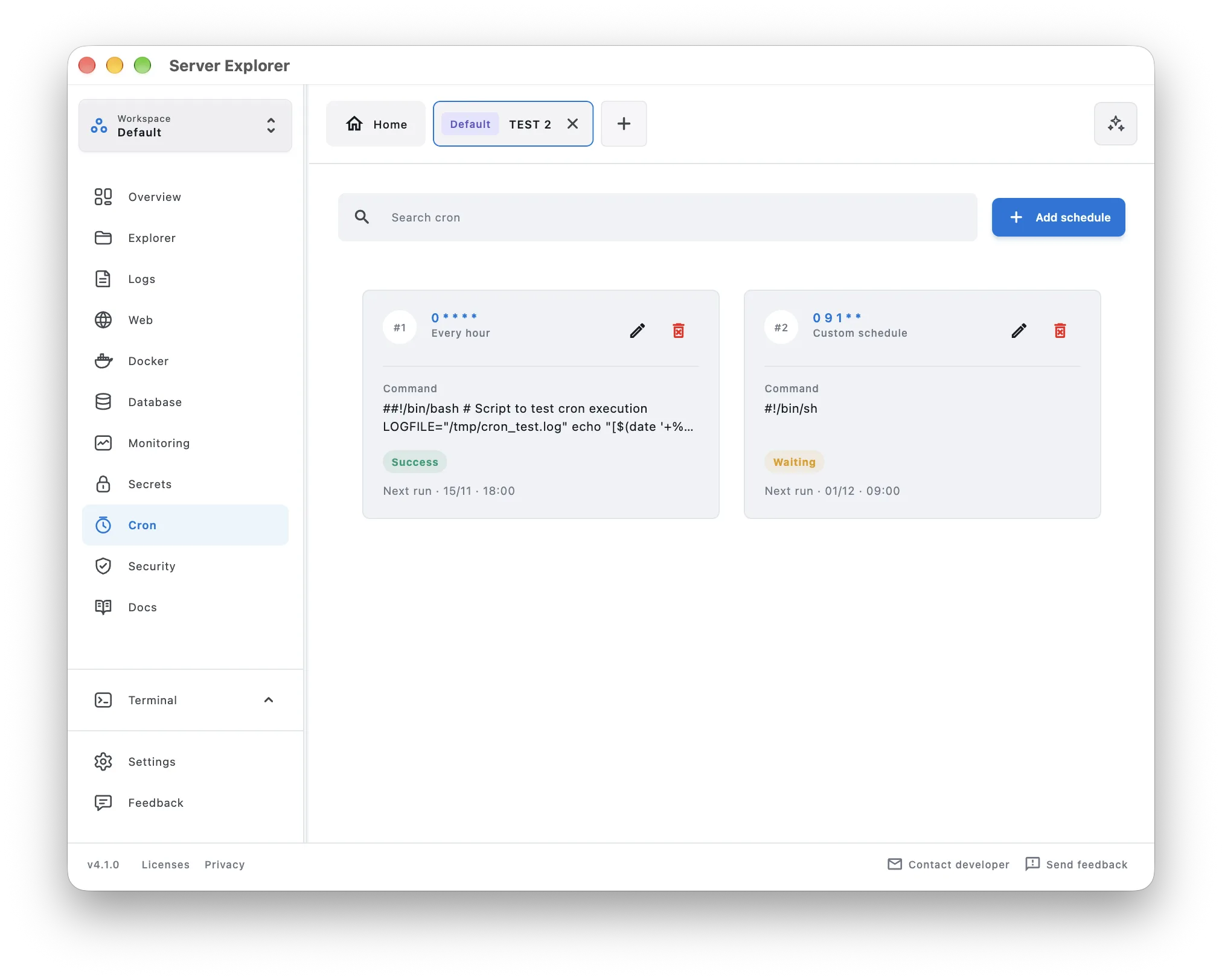

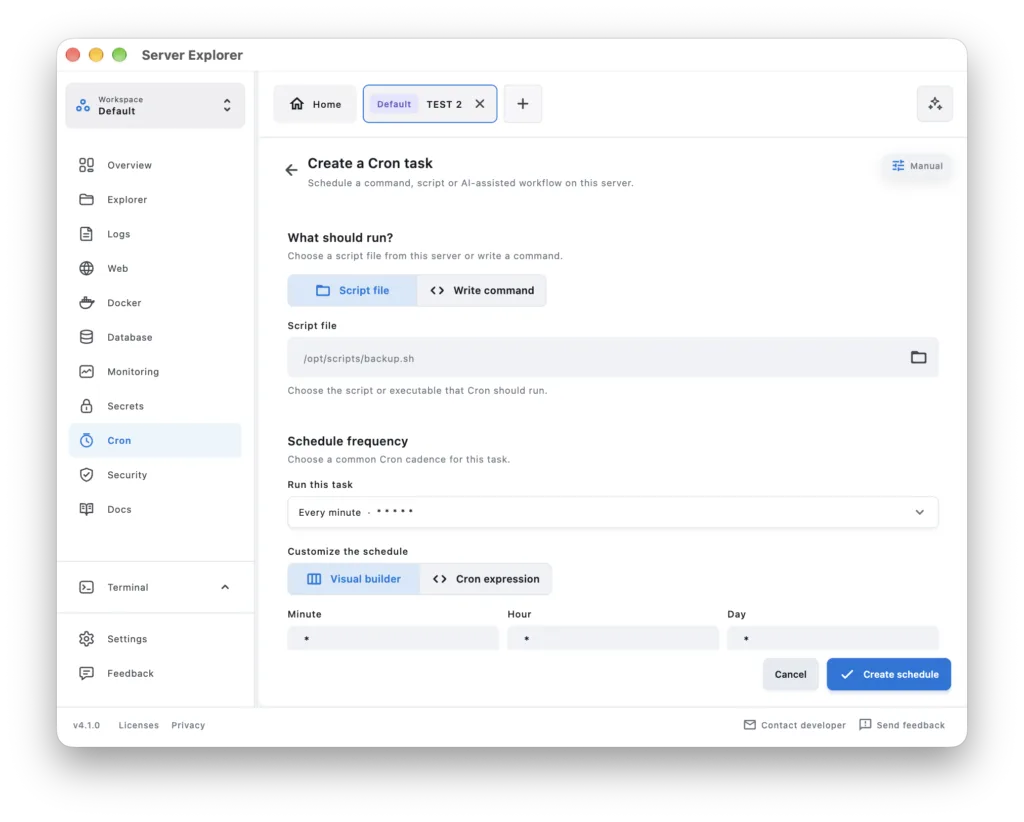
Server Explorer makes the configuration easier to inspect, but it cannot guarantee that a script will run successfully. When a task fails, use the service checks, logs, and environment diagnostics above to identify the underlying cause.
Bring your servers into focus.
A desktop app for macOS and Windows. Connect over SSH.
Quick Troubleshooting Checklist
- Is the job installed in the correct user’s crontab?
- Are the schedule fields valid for that crontab format?
- Is the
cronorcrondservice running? - Does the command use absolute paths and the correct working directory?
- Are required environment variables available securely?
- Does the cron user have the necessary permissions?
- Do the logs show an error, a timezone mismatch, or an overlapping run?
A cron job that works manually but fails on schedule rarely needs a complete rewrite. Start by capturing its output, then check the execution context.
Related articles
- How to create a cron job on your vps
- How to Check Linux Server Logs and Troubleshoot Errors
- How to Manage Multiple Linux Servers from One Desktop App