
How to Deploy a Docker Compose App on a Linux VPS
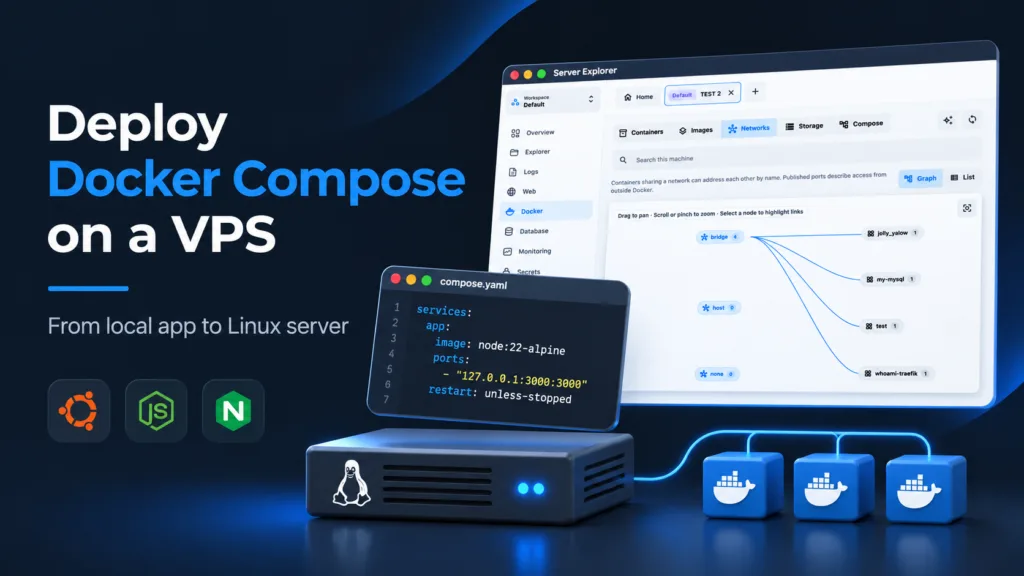
Your app works on your laptop. Now you want it running on a VPS, without manually restarting it every time you disconnect from SSH.
Docker Compose helps you define how your application runs in a single YAML file. This guide shows how to deploy a small Node.js app on an Ubuntu VPS, inspect problems, and manage its containers afterward.
1. Why use Docker Compose on a VPS?
A Compose file describes your application’s services, images, ports, volumes, and environment settings. Instead of remembering a long docker run command, you can start the project with:
docker compose up -dThe -d flag runs containers in the background. Compose also makes it easier to recreate the same setup after changes or a server migration.
For this example, we’ll deploy a Node.js app listening on port 3000, with Nginx acting as the public-facing reverse proxy.
2. Prepare your Linux VPS
You’ll need an Ubuntu VPS, SSH access, a domain pointed to the server, and a Node.js application with a working npm start command.
Connect over SSH:
ssh ubuntu@YOUR_SERVER_IPInstall Docker Engine and the Docker Compose plugin using Docker’s official Ubuntu installation instructions: Install Docker Engine on Ubuntu. Avoid outdated docker-compose package instructions.
Verify both components:
docker --version
docker compose version
Security note: Membership in the docker group effectively grants root-level privileges. Use Docker with appropriate permissions and don’t add untrusted users to that group.
3. Create your application files
Create a deployment directory and copy or clone your project into it:
mkdir -p ~/apps/my-app
cd ~/apps/my-app
# Example: git clone YOUR_REPOSITORY_URL .
Your app should have a package.json containing a start script and listen on 0.0.0.0, not only localhost inside the container.
Create a Dockerfile:
FROM node:22-alpine
WORKDIR /app
COPY package*.json ./
RUN npm ci --omit=dev
COPY . .
ENV NODE_ENV=production
EXPOSE 3000
USER node
CMD ["npm", "start"]
This assumes your app can run without a separate build step and its files are readable by the node user. Adapt the image and build process for TypeScript, Next.js, or other frameworks. Add a .dockerignore containing at least node_modules, .git, and .env so local secrets and dependencies aren’t copied into the image.
4. Configure Docker Compose
Create compose.yaml in the same directory:
services:
  app:
    build: .
    restart: unless-stopped
    environment:
      NODE_ENV: production
      PORT: 3000
    ports:
      - "127.0.0.1:3000:3000"
Notice the port binding: 127.0.0.1:3000:3000 makes the app reachable only from the VPS itself. Nginx will handle public traffic. Publishing 3000:3000 instead can expose the app directly to the internet, including when you expected firewall rules to protect it.
For application-specific settings, create a separate .env file and reference it using env_file: .env if needed. Keep secrets out of Git, limit file permissions, and remember that environment variables can be exposed to users with Docker access. For more sensitive deployments, consider a dedicated secret-management approach.
5. Deploy and check the containers
Build and start your application:
docker compose up -d --buildCheck its status:
docker compose psFollow the application logs:
docker compose logs -f --tail=100 appTest the app from the VPS:
curl -I http://127.0.0.1:3000A response such as 200, 301, or 404 confirms an HTTP server responded; it doesn’t necessarily mean the application is healthy. If the connection is refused, check the container logs, app startup command, and listening address.
6. Put Nginx and HTTPS in front
Install Nginx on the host, then create a site configuration such as /etc/nginx/sites-available/my-app:
server {
    listen 80;
    server_name example.com;

    location / {
        proxy_pass http://127.0.0.1:3000;
        proxy_set_header Host $host;
        proxy_set_header X-Real-IP $remote_addr;
        proxy_set_header X-Forwarded-For $proxy_add_x_forwarded_for;
        proxy_set_header X-Forwarded-Proto $scheme;
    }
}
Enable the site and verify Nginx before reloading:
sudo ln -s /etc/nginx/sites-available/my-app /etc/nginx/sites-enabled/my-app
sudo nginx -t
sudo systemctl reload nginx
Replace example.com with your domain and ensure its DNS records point to the VPS. Allow inbound ports 80 and 443 through your cloud firewall and host firewall, while keeping SSH access available.
Next, configure a trusted TLS certificate, for example using Certbot’s current Nginx instructions at certbot.eff.org. Do not treat the deployment as production-ready until HTTPS is working.
7. Manage Docker visually with Server Explorer
You don’t have to switch between terminal commands every time you want to inspect your containers.
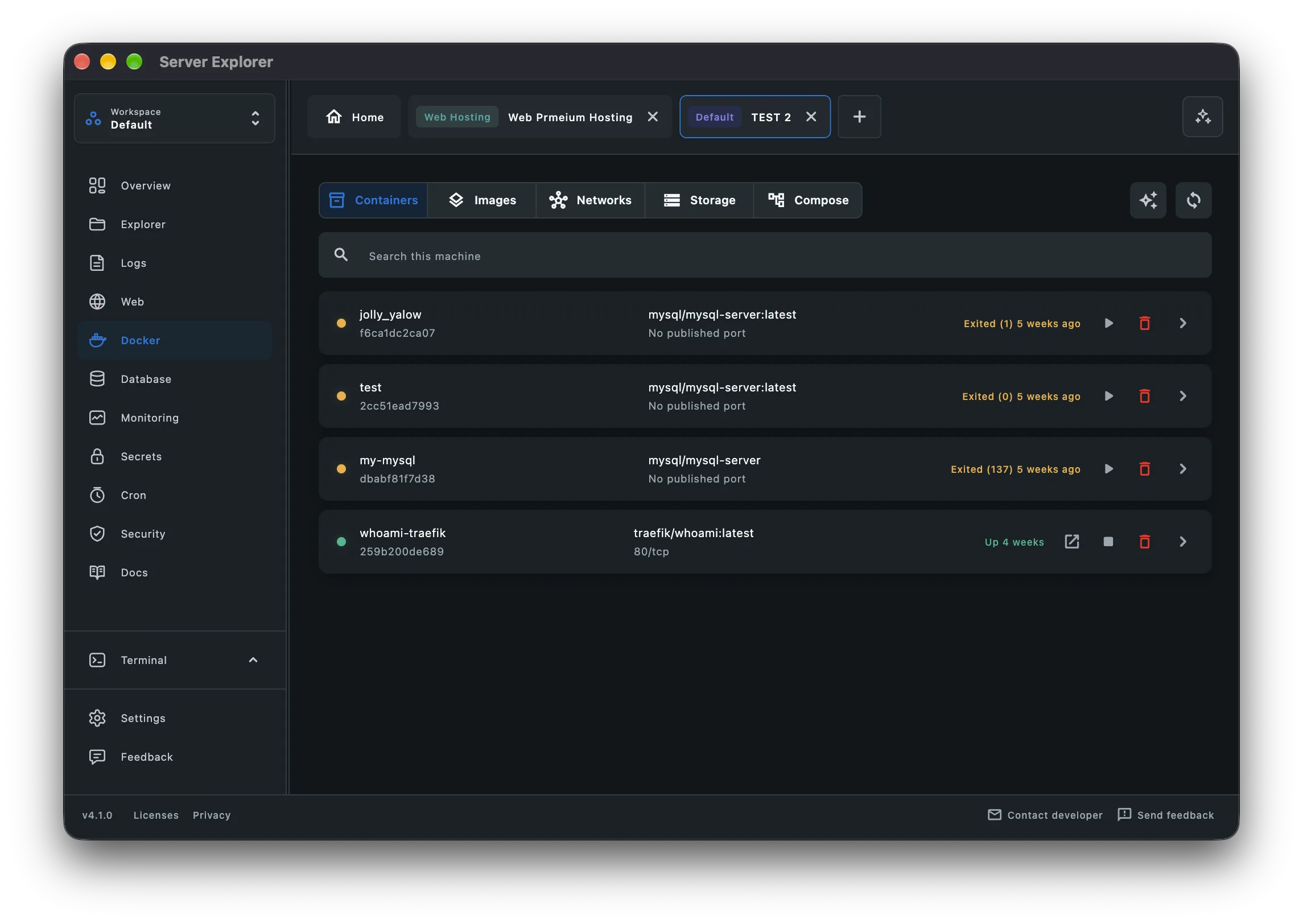
Server Explorer connects to your Linux VPS over SSH and provides a desktop interface for Docker management. You can inspect containers, images, volumes, and networks, alongside other server information.
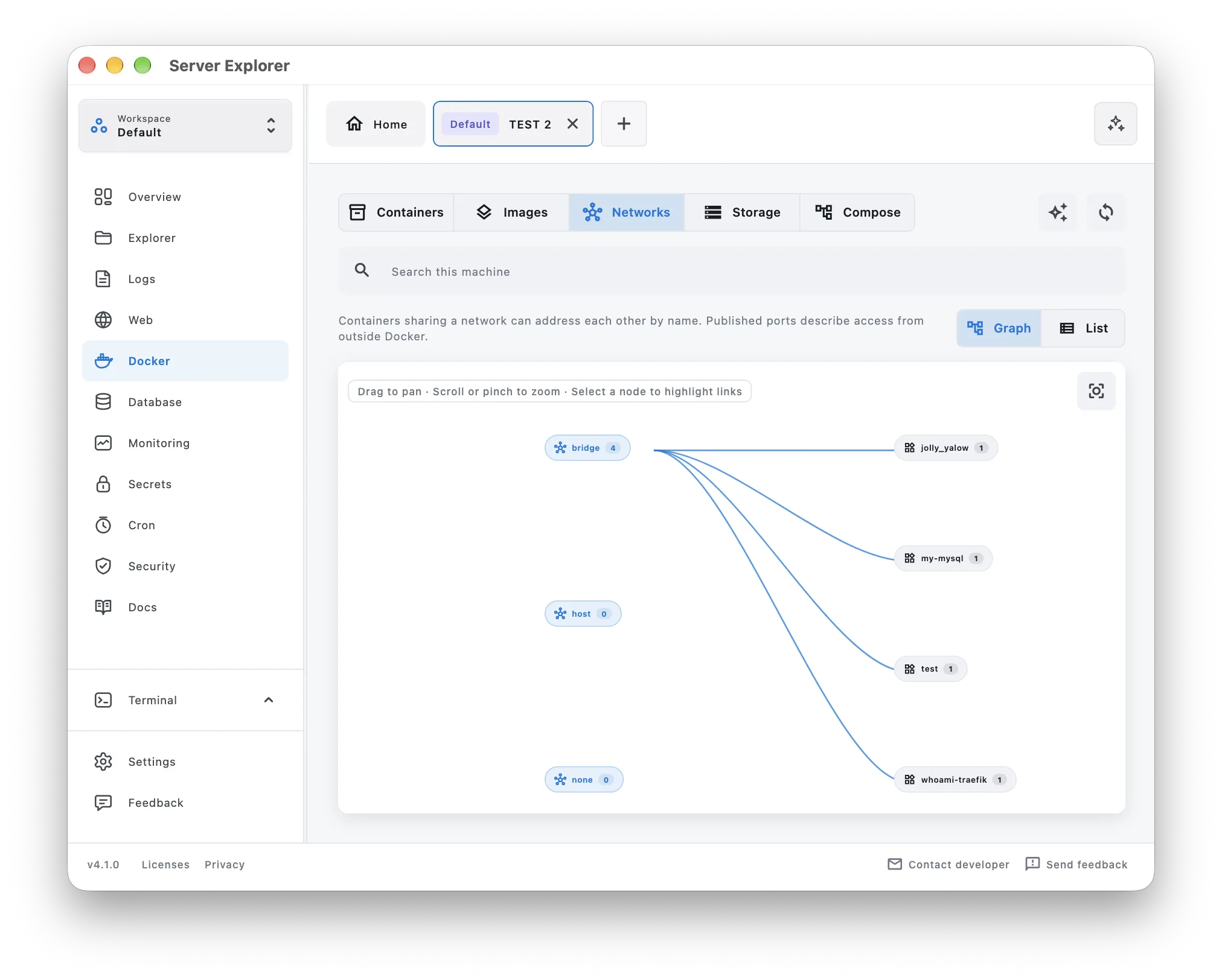
The Docker network view is especially useful when you’re running several services and need to understand their connections.
Server Explorer helps you inspect and operate your server; it does not automatically deploy your Compose project or configure Nginx and HTTPS for you.
8. Update and maintain your deployment
After changing application code, rebuild and recreate the service:
cd ~/apps/my-app
git pull
docker compose up -d --build
For services using remote images, pull the updated image before recreating containers:
docker compose pull
docker compose up -d
These commands are not zero-downtime deployment strategies. Recreating a container may briefly interrupt requests. For important applications, plan rollbacks, health checks, and maintenance windows.
Before changing production data, back up databases and persistent volumes. A container restart policy isn’t a substitute for backups, monitoring, or a recovery plan.
Final thoughts
Deploying Docker Compose on a VPS doesn’t need to be complicated: install Docker, define your services, start them, inspect the logs, and place a secure reverse proxy in front.
Once the app is online, the work shifts to keeping it healthy. If you’d rather inspect Docker containers and networks visually, explore Server Explorer.
Bring your servers into focus.
A desktop app for macOS and Windows. Connect over SSH.