
How to Fix 502 Bad Gateway on Nginx (5 Checks)
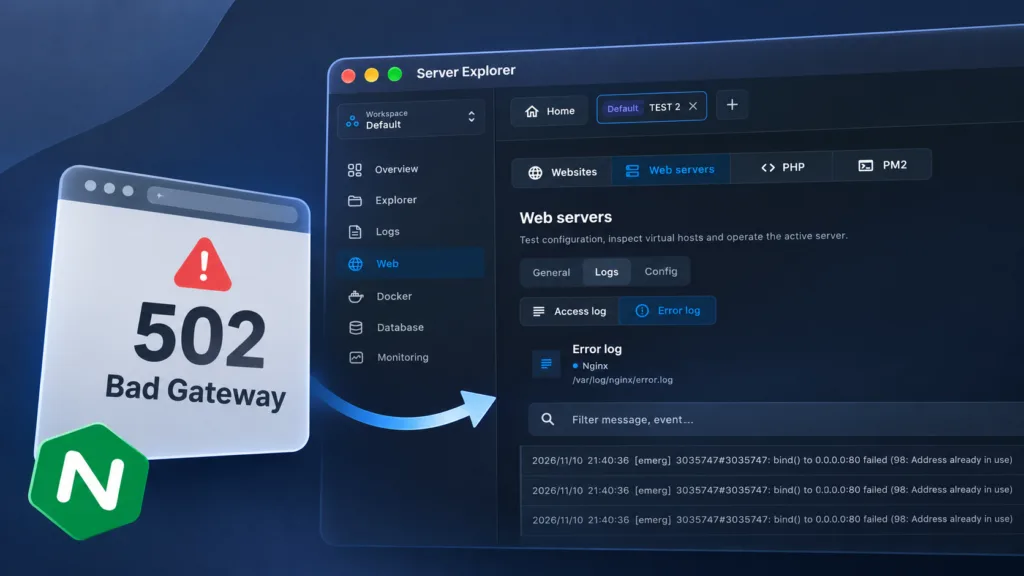
Your website worked yesterday. Today, it shows 502 Bad Gateway. If you host a Node.js, Python, or PHP application behind Nginx, the problem is often between Nginx and the service handling your requests.
Here are five checks to find the cause without blindly restarting everything.
What Does 502 Bad Gateway Mean?
Nginx often acts as a reverse proxy: it receives visitors’ requests and forwards them to your application (the upstream). A 502 response means Nginx could not get a valid response from that upstream. The application might have stopped, the port might be wrong, or Nginx might be unable to access a Unix socket.
1. Check Whether Your Application Is Running
Start with the backend, not Nginx.
For a systemd service:
sudo systemctl status my-app
sudo journalctl -u my-app -n 50 --no-pager
For a Node.js app managed by PM2:
pm2 list
pm2 logs my-app --lines 50
For Docker:
docker ps -a
docker logs --tail 50 my-container
If the application is crashing, fix that first. Restarting Nginx will not repair a broken backend.
2. Verify the Upstream Port
Suppose your Nginx configuration forwards requests to 127.0.0.1:3000. Check whether anything is listening there:
sudo ss -ltnp | grep ':3000'Then test the backend directly from the server:
curl -i http://127.0.0.1:3000/A 404 from your app can still prove the upstream is reachable; Connection refused suggests nothing is listening at that address and port. A timeout may indicate a different network or application issue.
If the backend runs in Docker, confirm the port mapping and whether Nginx is on the host or inside another container. localhost inside a container refers to that container, not the host or another container.
Bring your servers into focus.
A desktop app for macOS and Windows. Connect over SSH.
3. Read the Nginx Error Logs
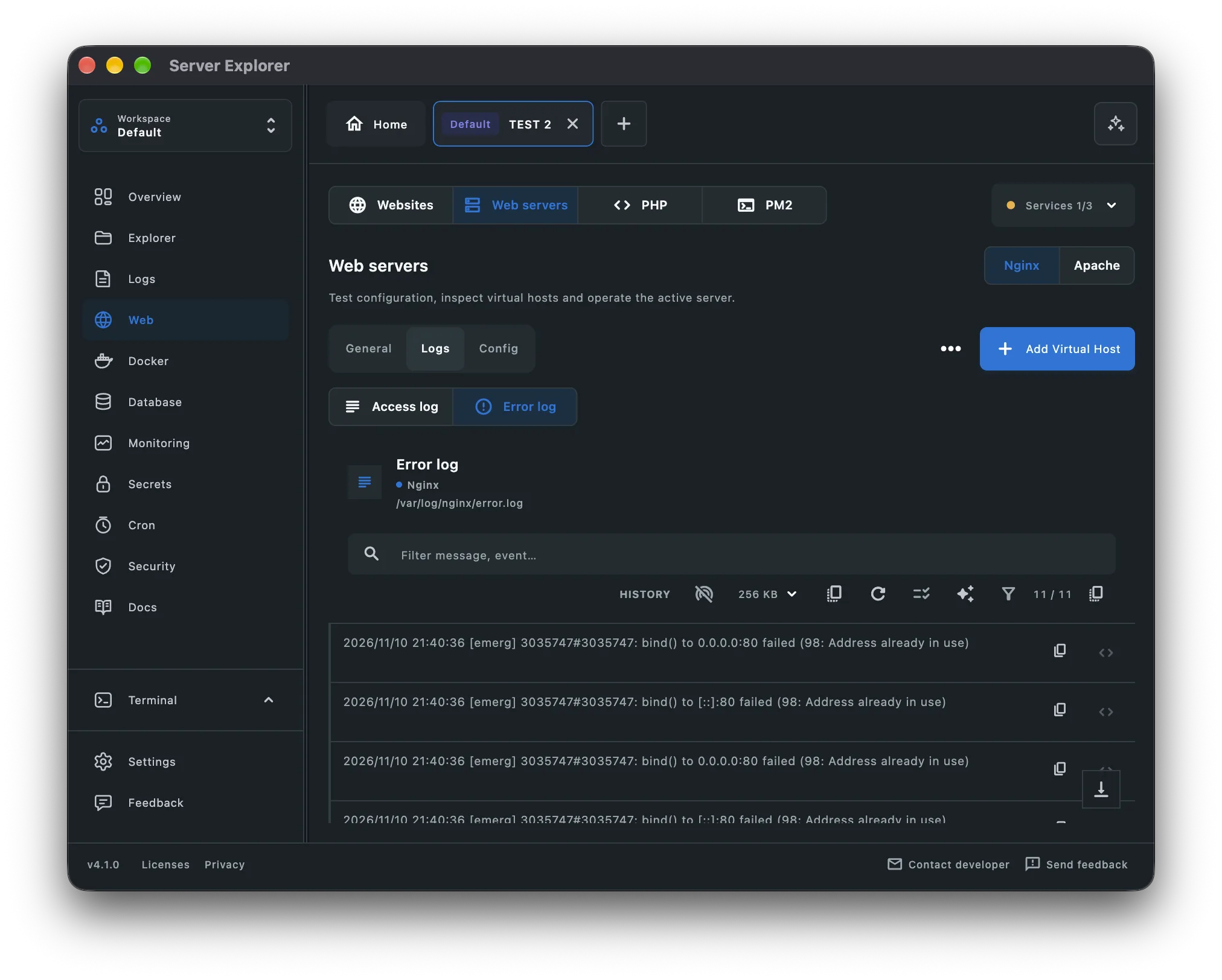
The error log usually gives you the strongest clue:
sudo tail -n 80 /var/log/nginx/error.logOr inspect the service journal:
sudo journalctl -u nginx -n 80 --no-pagerCommon messages include:
connect() failed (111: Connection refused): the upstream is not accepting connections at the configured endpoint.upstream timed out: the backend took too long to respond; check performance and timeout settings rather than assuming it is stopped.connect() to unix:... failed (13: Permission denied): Nginx cannot access the upstream socket, often due to ownership, permissions, or security policy.
Log locations can differ across distributions and custom Nginx configurations.
4. Check the Nginx Proxy Configuration
Open the relevant site configuration, commonly under /etc/nginx/sites-enabled/ or /etc/nginx/conf.d/.
For an HTTP backend on port 3000, a minimal proxy block looks like this:
location / {
    proxy_pass http://127.0.0.1:3000;
    proxy_set_header Host $host;
    proxy_set_header X-Real-IP $remote_addr;
    proxy_set_header X-Forwarded-For $proxy_add_x_forwarded_for;
    proxy_set_header X-Forwarded-Proto $scheme;
}
Check that the hostname, port, and protocol match your application. If Nginx proxies to a named upstream, inspect that upstream’s server definitions too.
Before applying changes:
sudo nginx -tIf the configuration test succeeds, reload Nginx:
sudo systemctl reload nginxDo not reload a broken configuration or change production settings without a backup.
5. Check Unix Socket Permissions
Some applications use a Unix socket instead of a TCP port, for example:
proxy_pass http://unix:/run/my-app/app.sock:;If the logs mention permission denied, inspect the socket and its parent directories:
sudo ls -l /run/my-app/app.sock
sudo namei -l /run/my-app/app.sock
The Nginx worker user needs appropriate access to the socket and permission to traverse its parent directories. Correct the application service’s socket ownership or group configuration rather than making the socket world-writable. On systems using SELinux or AppArmor, security policy may also block access.
Troubleshoot Nginx with Server Explorer
You can run these commands over SSH, but switching between terminals, service lists, and log files slows down troubleshooting.
With Server Explorer, you can connect to your Linux VPS and inspect relevant parts of your environment from one desktop interface:
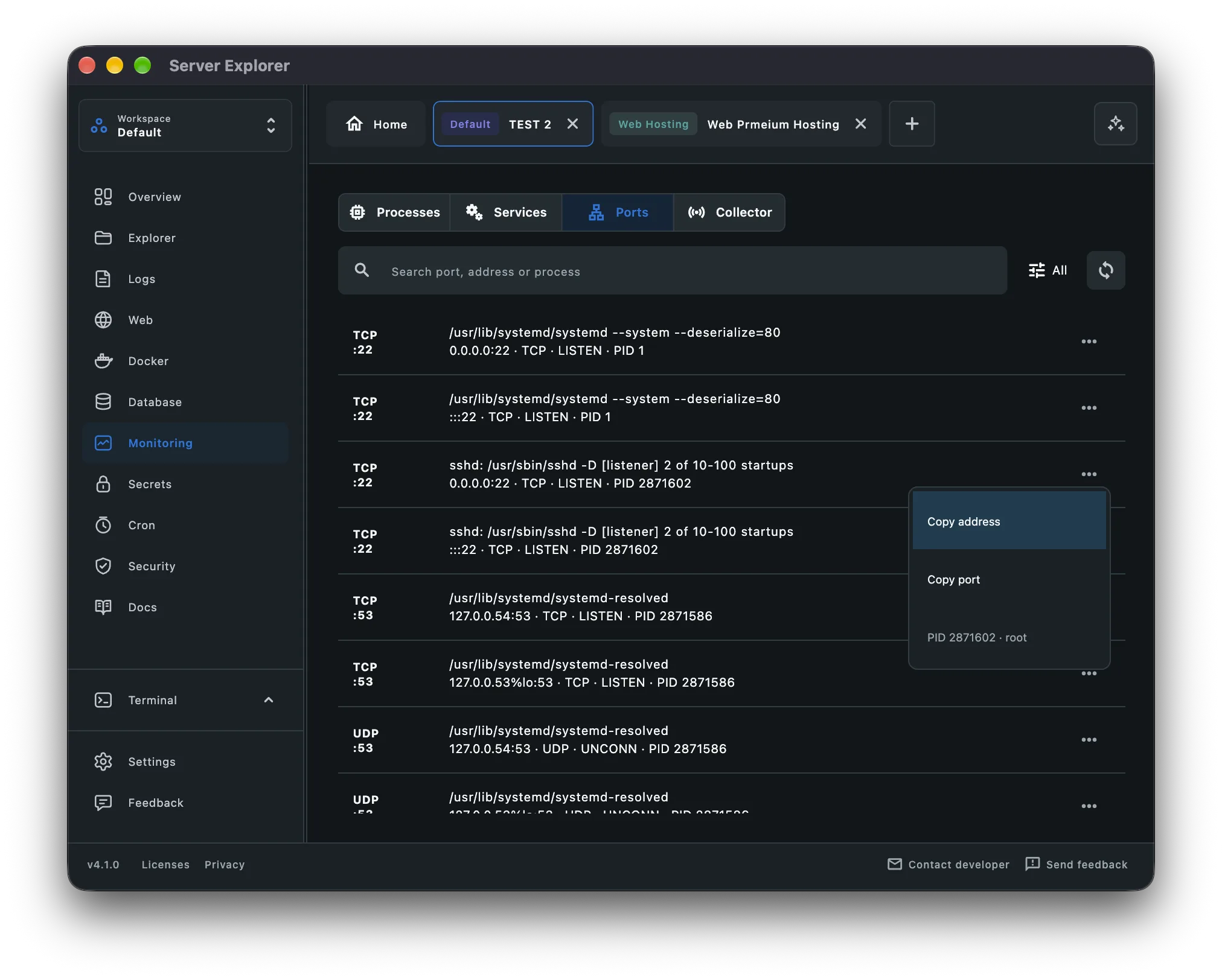
- Monitoring → Ports: see listening ports and their associated processes.
- Monitoring → Processes: locate and inspect processes; stop one when appropriate.
- Services: check and manage systemd services.
- Integrated terminal: run
curl,journalctl, ornginx -twithout leaving the app. - Logs: inspect supported log sources in the interface.
Server Explorer does not automatically diagnose or fix every Nginx 502 error. It makes the underlying server state easier to inspect while you investigate.
Bring your servers into focus.
A desktop app for macOS and Windows. Connect over SSH.
Quick Checklist
When Nginx returns a 502 error, work through this order:
- Confirm the backend application is running.
- Check that the expected port or socket exists.
- Test the backend directly with
curlwhen it uses HTTP. - Read the Nginx error log for the exact failure.
- Validate the Nginx configuration and socket permissions before reloading.
The key is to find out why Nginx cannot reach its upstream, not simply restart services until the error disappears.